
SSDs revolutionize storage with lightning-fast speeds, but they can mysteriously slow down over time. This blog dives into the real culprits behind SSD slowdowns, perfect for tech enthusiasts upgrading gaming rigs or troubleshooting content creation workflows.
Near-Full Capacity Kills Performance
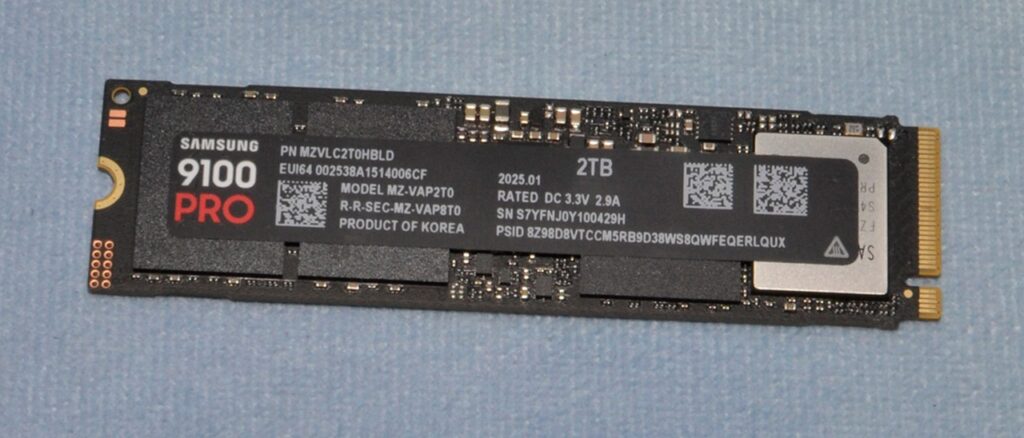
SSDs need free space for garbage collection and wear leveling—internal processes that erase old data blocks to prepare them for new writes. When your drive fills beyond 85-90% capacity, these operations compete with your tasks, causing dramatic slowdowns.
Controllers rely on over-provisioning (hidden reserve space) to maintain speed. A 1TB SSD effectively has 900-950GB usable; filling it chokes the SLC cache, dropping writes from 500MB/s to under 100MB/s. Gamers notice stuttering loads; editors face stalled 4K renders.
Quick Fix: Keep 20-25% free. Use Storage Sense in Windows or df -h on Linux to monitor. Offload games or footage to secondary HDDs for bulk storage.
Also Read: PCIE GEN5 SSDs Don’t Make any SENSE in 2026
TRIM Command Disabled or Broken
TRIM tells your SSD which deleted files to erase immediately, preventing “write amplification” where old data lingers, forcing read-modify-write cycles. Without TRIM, performance degrades rapidly after the first defrag or large file deletions.stellarinfo+1
Modern OSes enable TRIM by default (Windows 10/11, recent Linux kernels), but third-party tools, bad drivers, or malware can disable it. Symptoms include ballooning “free space” that doesn’t improve speeds.
Test It: Run fsutil behavior query DisableDeleteNotify in Command Prompt (0 = enabled). Re-enable with fsutil behavior set DisableDeleteNotify 0. Benchmark before/after using CrystalDiskMark.
Thermal Throttling: Heat is the Enemy
NVMe SSDs generate serious heat during sustained writes—up to 70°C triggers automatic throttling to prevent damage. Poor case airflow, missing heatsinks, or cramped M.2 slots exacerbate this, slashing speeds by 50% or more.
SATA SSDs run cooler but still throttle under heavy loads like video encoding. Your gaming PC during long Cyberpunk sessions or 4K exports risks this exact issue.
Solutions:
- Add M.2 heatsinks (₹200-500 in India).
- Ensure front intake fans blow over drives.
- Monitor temps with HWInfo—aim under 60°C.
Outdated or Corrupt Firmware
Firmware controls NAND operations, error correction, and power management. Bugs or old versions cripple TRIM, cause SLC cache misfires, or mishandle PCIe lanes.
Manufacturers release fixes for real-world issues like power-loss protection. Samsung Magician or Crucial Storage Executive tools flash updates safely.
Update Process:
- Backup data.
- Download official tool from maker (e.g., WD Dashboard).
- Run live update—takes 5 minutes.
SLC Cache Exhaustion
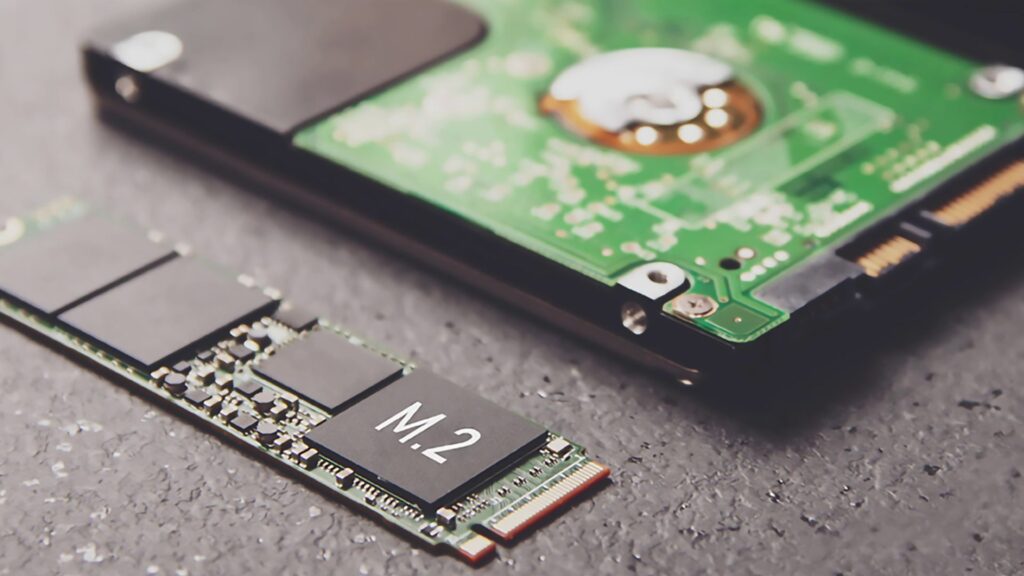
DRAM-less or QLC SSDs use pseudo-SLC cache for burst writes (e.g., 1GB at 3500MB/s). Once full, speeds plummet to native TLC/QLC levels (500-1000MB/s).
Budget drives like Kingston A400 expose this during large transfers. Premium DRAM-cached models (Samsung 990 Pro) sustain speeds longer.
From our NVMe vs SATA blog, NVMe hits this wall harder but recovers faster with idle time.
Wear and Tear from Write Amplification
NAND cells wear after 1000-3000 program/erase cycles (P/E). Write Amplification (WAF) multiplies host writes due to block erasure overhead—full drives amplify this 3-5x.
QLC NAND (your budget picks) endures fewer cycles than TLC, accelerating slowdown after 100-200TB written. Gaming + content creation hits this quicker.
Mitigate: Choose TLC/DRAM SSDs. Check TBW ratings (e.g., 600TBW for 1TB). Tools like CrystalDiskInfo show wear leveling count.
Power Instability and Controller Failures
Voltage spikes or PSU issues corrupt SSD metadata, forcing recovery loops that tank IOPS. Laptops during low-battery writes suffer most.
AHCI mode disabled (IDE instead) caps SATA at HDD speeds. Virus/malware fragments files, mimicking full-drive issues.
Fixes:
- Verify BIOS AHCI enabled.
- Run chkdsk /f and sfc /scannow.
- Use UPS for desktops.
Also Read: Things You Should Know Before Purchasing a UPS

Background Processes Hog Resources
Windows Search indexing, Superfetch, or antivirus scans hammer random IOPS. Discord/Chrome with 100 tabs fill cache constantly.
Optimize:
- Exclude SSD from indexing.
- Disable SysMain (Superfetch): sc config sysmain start=disabled.
- Schedule scans overnight.
Performance Comparison Table
| Cause | Speed Drop | NVMe Impact | SATA Impact | Fix Priority |
| Full Drive | 70-90% | High | Medium | Critical |
| No TRIM | 50-80% | High | High | High |
| Overheating | 40-70% | Very High | Low | High |
| Bad Firmware | 20-60% | Medium | Medium | Medium |
| SLC Cache Full | 60-80% | Very High | Low | Low (buy better) |
| High Wear | 10-40% | Medium | Low | Monitor |
| Power Issues | 30-70% | High | Medium | Medium |
Prevention Tips for Gamers and Creators (Keep Your SSD Fast)
If you’re a gamer or content creator, your SSD is constantly under pressure—game installs, large video files, recordings, edits, and frequent file transfers. Without proper care, performance will degrade over time. The good news? You can prevent most slowdowns with a few smart habits.
For Gamers
1. Avoid Filling Your SSD Completely
Games today are massive (50GB–150GB+). If your SSD is almost full, performance drops significantly. Always keep at least 20–25% free space to maintain speed and responsiveness.
2. Install Only What You Play
Having 10+ heavy games installed might look cool, but it slows down your system. Uninstall games you don’t actively play—your SSD will thank you.
3. Enable TRIM (Automatic Optimization)
TRIM helps your SSD manage deleted data efficiently. Most modern OS like Windows enable it automatically, but it’s worth checking. This keeps your game load times consistent.
4. Keep Firmware Updated
SSD manufacturers release firmware updates to improve performance and stability. Updating occasionally can fix hidden slowdowns.
For Content Creators (YouTubers, Editors, Streamers)
1. Use Separate Drives for Workflows
If possible, use:
- One SSD for OS & software
- One SSD for editing (scratch disk)
- One SSD/HDD for storage
This reduces constant read/write stress on a single drive.
2. Manage Cache & Temporary Files
Editing software (Premiere Pro, DaVinci Resolve, etc.) generates tons of cache files. Clean them regularly to prevent unnecessary SSD clutter.
3. Avoid Excessive Writes
Frequent rendering and exporting can wear out SSD cells over time. Try to:
- Avoid unnecessary re-exports
- Use proxies for editing large footage
4. Use High-Quality SSDs (with DRAM Cache)
Budget SSDs without DRAM slow down faster under heavy workloads. If you’re serious about content creation, invest in a reliable SSD with DRAM.
Pro Tip (For Both)
Don’t Defragment SSDs
Unlike HDDs, SSDs don’t need defragmentation. It actually reduces lifespan. Use built-in optimization tools instead.
Restore Speed: Step-by-Step Guide
- Free 25% space—uninstall bloat.
- Enable TRIM, update firmware.
- Add cooling, test AHCI.
- Secure erase (Samsung tool) resets to factory.
- Benchmark—expect 90% original speeds.
SSDs last 5-10 years with care. Don’t fear slowdowns—most are reversible.
FAQ
Q1. Do SSDs slow down over time?
A: Yes, SSDs can slow down when they are almost full or due to wear over time.
Q2. How to fix slow SSD?
A: Keep at least 20% free space, enable TRIM, update firmware, and avoid filling the drive completely.
Q3. Does SSD health affect speed?
A: Yes, poor SSD health can reduce performance and increase latency.
Q4. Is a full SSD slower?
A: Yes, when SSD is nearly full, it loses speed because it has less space to manage data efficiently.