
Solid-state drives are fast, silent, and far more responsive than traditional hard drives—but they are not indestructible. The biggest mistake many users make is treating an SSD exactly like an HDD: filling it to the limit, ignoring heat, and assuming it will run forever.
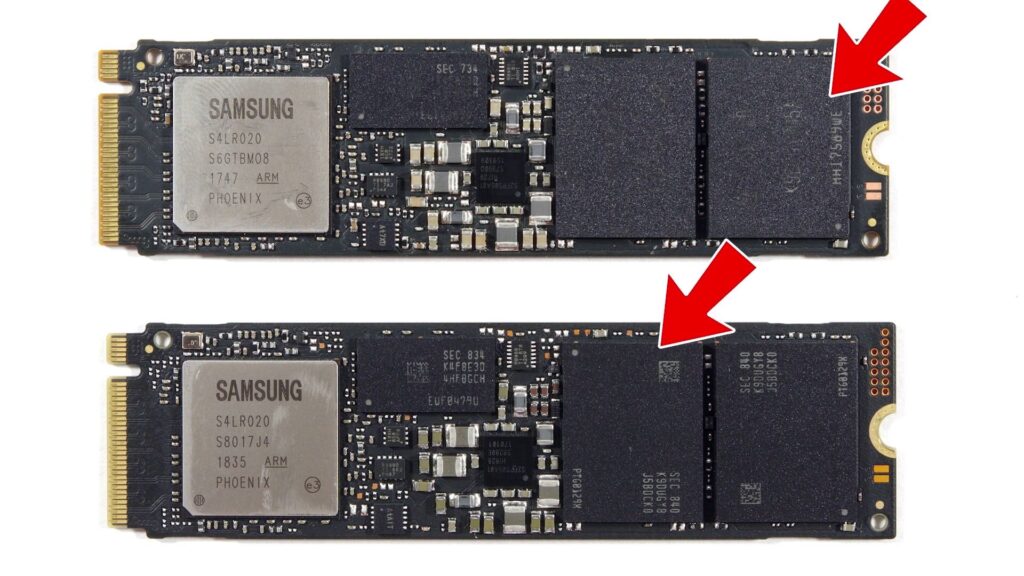
An SSD uses NAND flash memory cells with a finite number of program/erase cycles. Modern drives use wear-leveling, error correction, spare NAND capacity, and TRIM to manage this wear, but poor usage habits can still reduce performance, shorten endurance, or—in the worst case—lead to an unreadable drive.
The Biggest SSD Mistake
The single most dangerous habit is running an SSD nearly full for long periods.
When an SSD has very little free space left, its controller has fewer empty blocks available for background management. This makes garbage collection and wear-leveling less efficient, increases write amplification, and can cause speeds to drop sharply during game installs, video exports, Windows updates, or file transfers.
As a practical rule, keep at least 10–20% of the total capacity free. For a 1TB SSD, try to leave roughly 100GB to 200GB unused, especially if it is your Windows drive or a working drive for editing content.
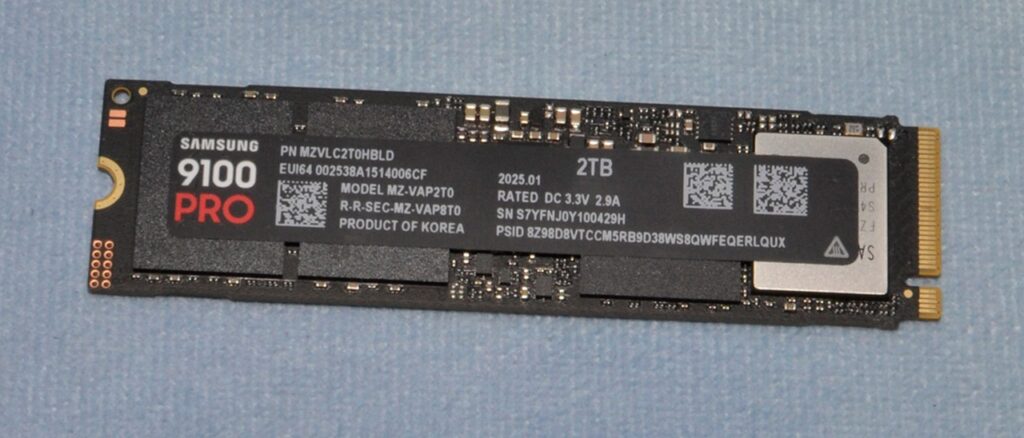
For example, if a 500GB SSD contains Windows, five large games, browser cache, pagefile data, and video-project files, it can quickly reach 95% capacity. At that point, every new file may force the controller to move and erase existing data before it can write new data.
Why SSDs Wear Out
Unlike an HDD, an SSD has no spinning platters or moving read head. It stores information electrically in NAND flash cells. However, those cells cannot be endlessly rewritten.
Every time data is written, modified, deleted, downloaded, cached, installed, or exported, the SSD performs internal operations. The drive controller spreads this activity across the available NAND using wear-leveling, while reserved spare capacity helps replace blocks that become unreliable.
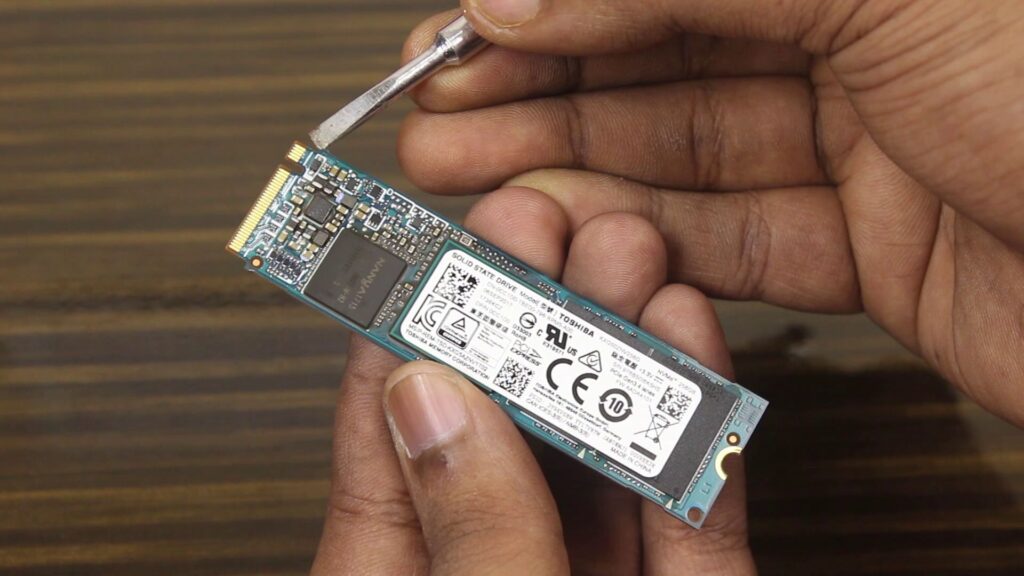
This does not mean normal users should panic about downloading games or updating Windows. Consumer SSDs are designed for regular daily use. The problem starts when users combine heavy writes, high temperatures, a nearly full drive, unstable power, and no backups.
Mistake 1: Filling the Drive Completely
A full SSD is not immediately dead, but it is under stress.
When free capacity falls too low, the drive has limited room for temporary data movement. This can make sustained write performance slower and raise write amplification—the amount of internal writing the SSD performs compared with the data you actually save.
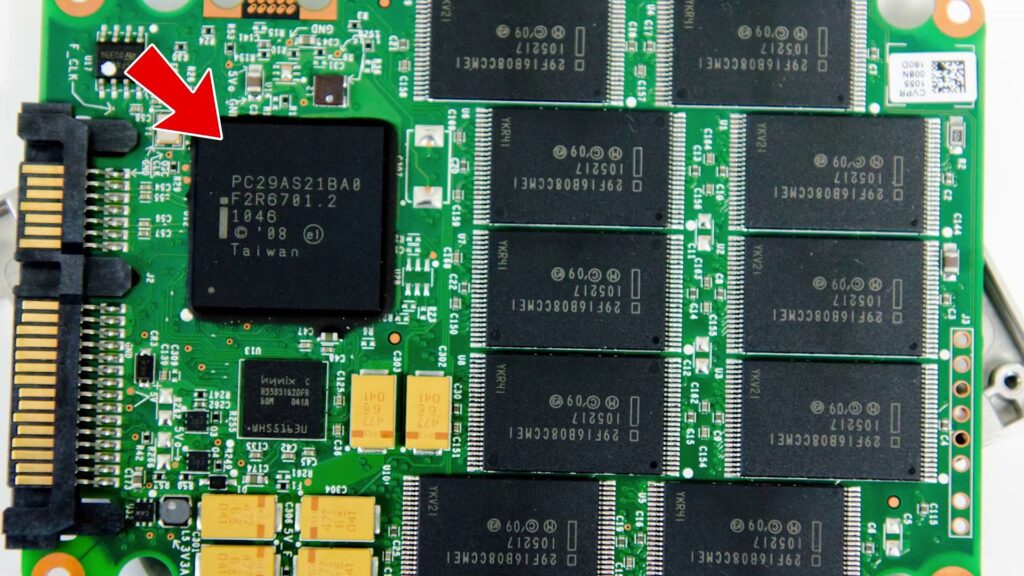
Avoid using your primary SSD as permanent storage for:
- Raw video footage you are not actively editing
- Old game installers and ZIP archives
- Duplicate downloads
- Large temporary render files
- Unused games and applications
- Repeated full-device backups
Move cold storage to an HDD, external drive, NAS, or cloud backup. Your NVMe SSD should ideally hold your operating system, frequently played games, active projects, and applications that benefit from fast loading.
Mistake 2: Ignoring SSD Temperature
Heat is another silent SSD killer, particularly for NVMe drives installed close to a powerful GPU.
During long gaming sessions, shader compilation, large file copies, video rendering, or benchmark testing, an M.2 SSD can become hot. Sustained high temperature can lead to thermal throttling, slower performance, NAND degradation, and controller reliability problems over time.
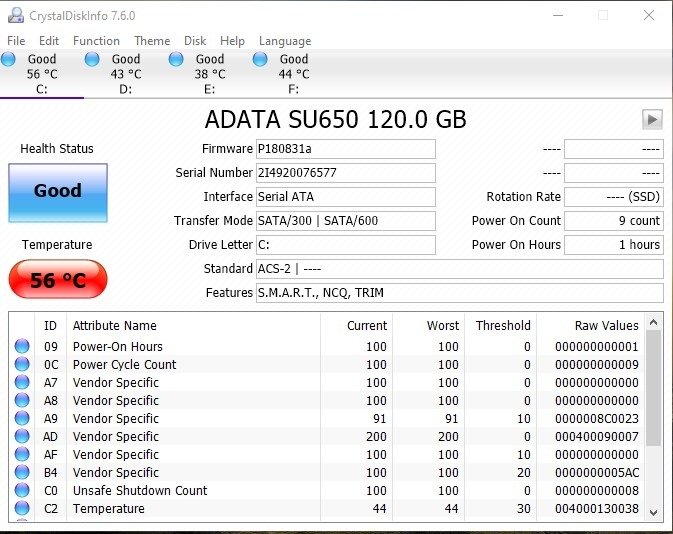
A reasonable target is to keep the SSD well below 70°C during demanding workloads. Check temperature using a tool such as CrystalDiskInfo, HWiNFO, Samsung Magician, WD Dashboard, Crucial Storage Executive, or your motherboard software.
For desktop PCs, use an M.2 heatsink if your motherboard includes one. Also make sure your case has working intake and exhaust airflow. For laptops, clean dust from vents and avoid long gaming or rendering sessions on a bed, pillow, or other soft surface that blocks cooling.
Mistake 3: Defragmenting an SSD
Defragmentation is useful for hard drives because HDDs physically move a read head across spinning disks. SSDs have almost instant access to data anywhere on the flash memory, so fragmentation does not create the same performance issue.
Defragmenting an SSD adds unnecessary writes without giving a meaningful speed benefit. Modern operating systems use SSD-friendly optimization functions such as TRIM instead.
Also Read: Don’t Defrag SSD: Why? How to Boost Up SSD Performance?
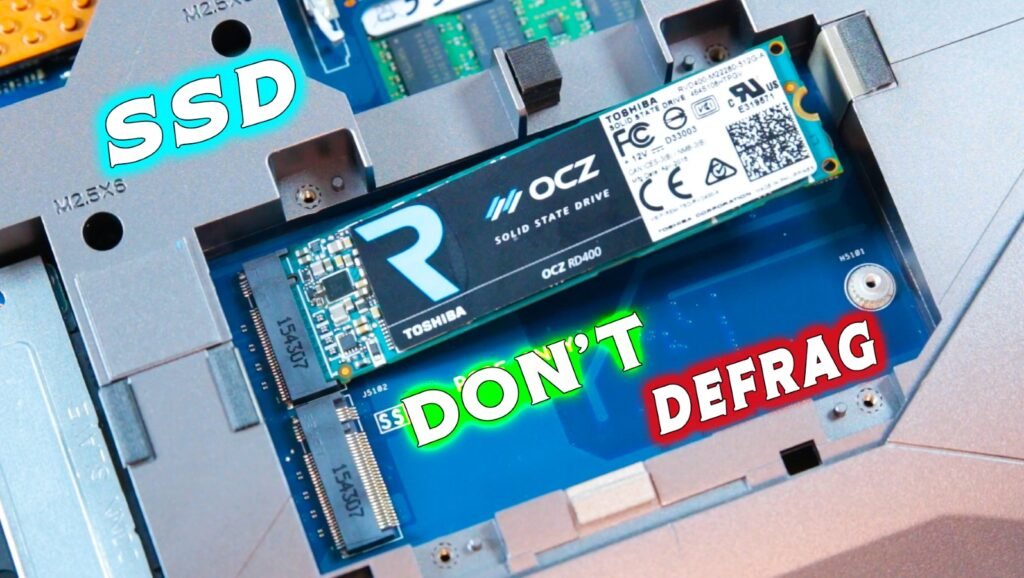
Windows normally detects SSDs and handles optimization correctly. The risk comes from third-party “PC cleaner,” “speed booster,” or old disk-management tools that force a traditional defrag routine.
Do not manually defragment an SSD. Use Windows’ built-in Optimize Drives function, which should send TRIM rather than perform an HDD-style defragmentation on a correctly detected SSD.
Mistake 4: Disabling TRIM
TRIM is an important command that tells the SSD which deleted data blocks are no longer needed. This gives the controller a chance to clean and prepare blocks for future writes.
If TRIM is disabled, the SSD may need to do more work during writes. That can reduce sustained performance and raise internal write activity over time.
In Windows, open Command Prompt as administrator and check TRIM status with:
fsutil behavior query DisableDeleteNotifyIf the result is 0, TRIM is enabled. If it returns 1, it is disabled.
Most modern Windows installations enable TRIM automatically, so do not change settings unless you understand why it was disabled.
Mistake 5: Using a Cheap SSD for Heavy Writes
Not every SSD is built for the same workload.
A budget QLC SSD may be perfectly fine for a secondary game library, office PC, or general home use. But it may not be the right choice for daily 4K video editing, CCTV recording, database workloads, torrent-heavy usage, constant file syncing, or large RAW-media projects.
Write-heavy work gradually consumes NAND endurance. Drives are commonly rated using TBW (terabytes written), which indicates how much data can be written during the warranty period. Continuous recording, video exp orts, and large cache files can use that endurance far faster than web browsing or gaming.
For a content-creation PC, consider a higher-end TLC NVMe SSD with a healthy TBW rating, DRAM cache where relevant, reliable firmware support, and a long warranty.
Mistake 6: Ignoring Firmware Updates
SSD firmware controls important internal tasks, including compatibility, power management, error handling, and NAND behavior. A firmware update can fix stability bugs or improve drive reliability.
Check the manufacturer’s official utility every few months:
- Samsung Magician
- WD Dashboard
- Crucial Storage Executive
- Kingston SSD Manager
- Corsair SSD Toolbox
Outdated firmware does not automatically mean your SSD will fail, but ignoring known fixes is unnecessary risk—especially if you experience random disconnects, freezes, slowdowns, or boot problems.
Always back up important data before a firmware update and avoid updating during unstable power conditions.
Mistake 7: No Backup Plan
Even a perfectly maintained SSD can fail unexpectedly.
Power cuts, faulty PSUs, motherboard issues, controller failure, firmware corruption, accidental deletion, malware, and physical damage can make data inaccessible. Sudden power loss during writes can potentially corrupt SSD data structures or firmware mapping information, particularly on drives without stronger power-loss protection.
Use the 3-2-1 backup rule:
- Keep three copies of important data
- Store copies on two different types of media
- Keep one copy off-site, such as encrypted cloud storage or an external drive stored elsewhere
Your SSD can be replaced. Your project files, photos, client work, thumbnails, scripts, and saved game data may not be replaceable.
Quick SSD Health Checklist
Follow these habits to improve SSD lifespan:
- Keep 10–20% storage free
- Avoid manual defragmentation
- Keep TRIM enabled
- Use a heatsink and proper airflow for hot NVMe SSDs
- Monitor SMART health, temperature, and total host writes
- Update firmware only through official tools
- Choose TLC or higher-end drives for write-heavy workloads
- Use a stable PSU, surge protector, or UPS where possible
- Back up important data regularly
An SSD usually does not die because of one game download or one Windows update. It fails early when small bad habits become permanent: no free space, excessive heat, constant unnecessary writes, unstable power, and no backup. Treat your SSD as performance hardware—not just a storage box—and it can remain fast and reliable for years.