
If your PC has expensive RAM but still feels like it’s not delivering the speed you paid for, the problem may be hiding inside your BIOS. A tiny setting called **XMP** on Intel systems and **EXPO** on AMD systems can unlock your memory’s advertised speed and improve overall responsiveness.
Most users install their RAM and never touch the BIOS again, which means the memory often runs at a slower default speed than the one printed on the box. Enabling the right memory profile is one of the easiest ways to squeeze extra performance out of your system without buying any new hardware.
What XMP and EXPO Actually Do
XMP stands for Extreme Memory Profile, while EXPO is AMD’s memory profile system for Ryzen platforms. Both are designed to apply the manufacturer’s tested settings for speed, timings, and voltage so your RAM can run closer to its rated specifications.
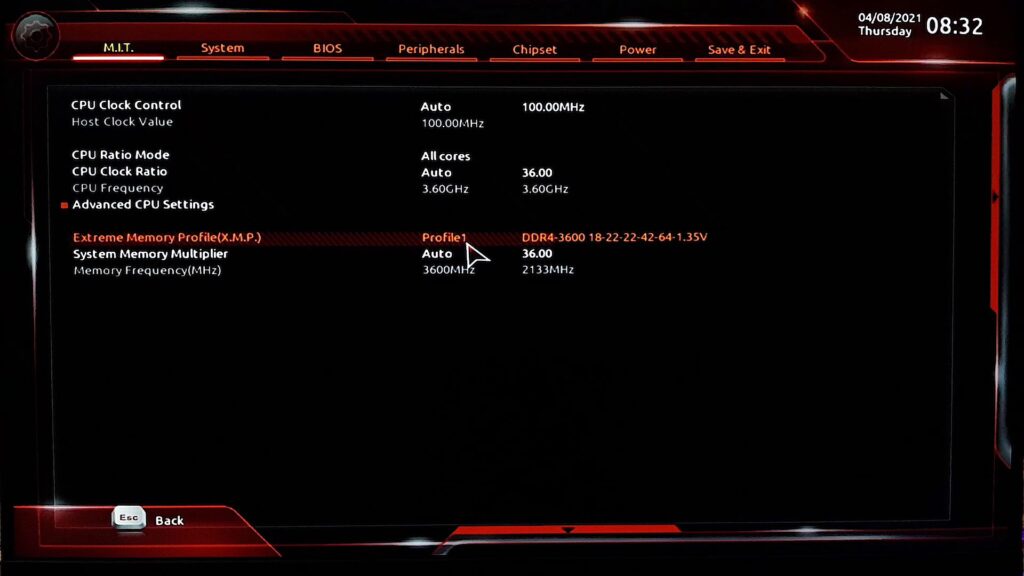
Without these profiles, many systems fall back to conservative default memory settings. That means you may be paying for 3200MHz, 3600MHz, or even faster RAM while the PC is actually running it at a much lower speed.
Why DDR5 Needs This
DDR5 is designed for higher bandwidth and better efficiency than DDR4, but it also relies more heavily on correct memory profiles. Without XMP or EXPO enabled, DDR5 often defaults to conservative speeds and timings, which can limit the performance you paid for.This matters because DDR5 memory kits are sold with specific rated speeds, such as 5600MHz, 6000MHz, or higher. If the profile is disabled, the motherboard may not apply those settings automatically, so the RAM won’t deliver its full potential.

Why XMP & EXPO Matters?
Memory speed can affect system responsiveness, game performance, and overall smoothness, especially in CPU-sensitive workloads. While it won’t transform a weak PC into a powerhouse, it can help your hardware perform the way it was intended to.
For gamers, this can be especially useful in titles that depend heavily on CPU and memory performance. For content creators, it can make the system feel more fluid during editing, multitasking, and heavy browser usage.
How To Enable XMP & EXPO?
The process is usually simple. Restart your PC, enter BIOS/UEFI, and look for a setting labeled XMP, EXPO, DOCP, or memory profile. Once you find it, enable the profile, save the changes, and reboot.
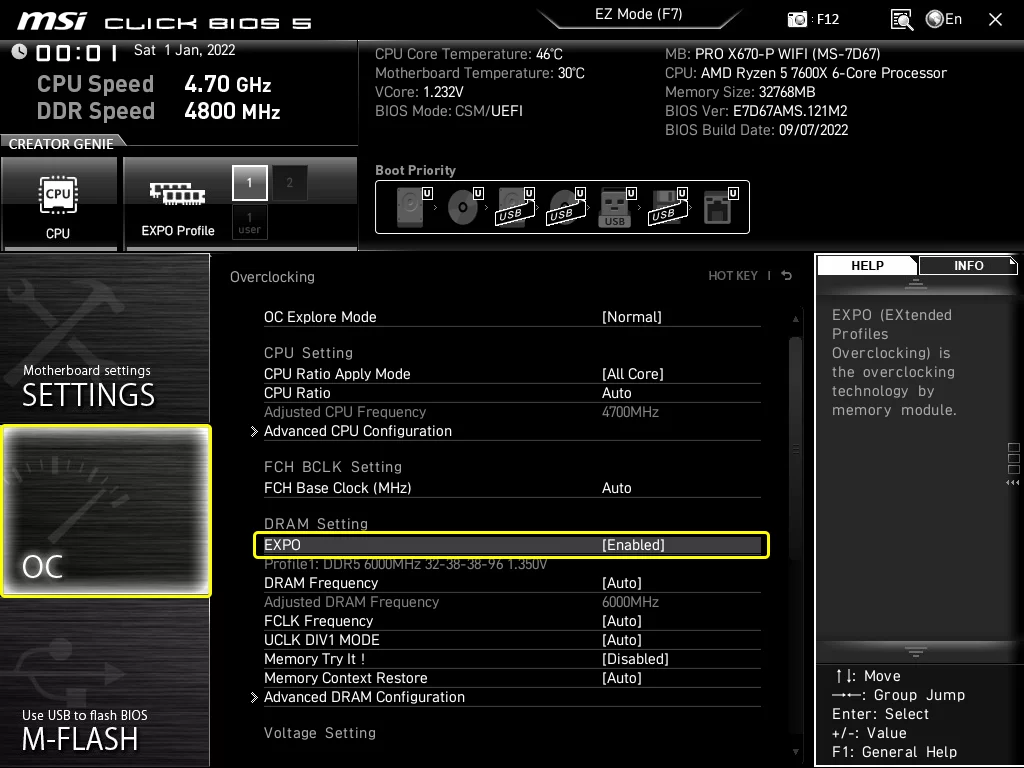
On Intel systems, you’ll usually see XMP. On AMD systems, especially with DDR5 RAM, EXPO is often the better choice because it is built for AMD Ryzen memory tuning.
Before You Change Anything
Before enabling a memory profile, it helps to check your current RAM speed in Windows so you can compare it after the change. If the new setting causes instability, you can always go back into BIOS and turn it off.
It’s also smart to make sure your motherboard supports the RAM profile and that your BIOS is reasonably up to date. Most modern boards support these features, but the exact location of the setting can vary by brand.
Is XMP & EXPO Safe
For most users, enabling XMP or EXPO is a normal and expected step when setting up performance RAM. These are manufacturer-tested settings, but like any memory tuning, there can still be rare cases where a specific CPU, motherboard, or RAM combination needs adjustment.If the system becomes unstable, you can simply return to BIOS and disable the profile. That makes it one of the easiest performance tweaks to try on a modern DDR5 system.
Final Thoughts
This is one of those rare PC tweaks that is both simple and genuinely useful. If your RAM is running below its rated speed, enabling XMP or EXPO can give your system a free performance uplift in just a few clicks.
For most users, it’s the first BIOS setting worth checking after building a PC or upgrading memory. It takes minutes, costs nothing, and helps your hardware perform closer to the level you already paid for.
keep in mind if you are already in DDR5 then enabling XMP & EXPO is much more crucial, DDR5 is powerful, but only if it is configured properly. A tiny BIOS setting like XMP or EXPO can make a real difference by letting your memory run at the speed it was designed for.For anyone buying DDR5 RAM, this is one of the first settings worth checking after building or upgrading a PC. It takes only a minute, but it can stop your memory from running like a slower, underused version of itself.