
Is your laptop lagging, freezing, or taking forever to load apps? These 7 proven fixes can restore its speed without needing expert skills.
Why Laptops Slow Down
Laptops slow over time due to accumulated junk files, too many background programs, low RAM, outdated software, malware, full storage, and old hardware like HDDs.
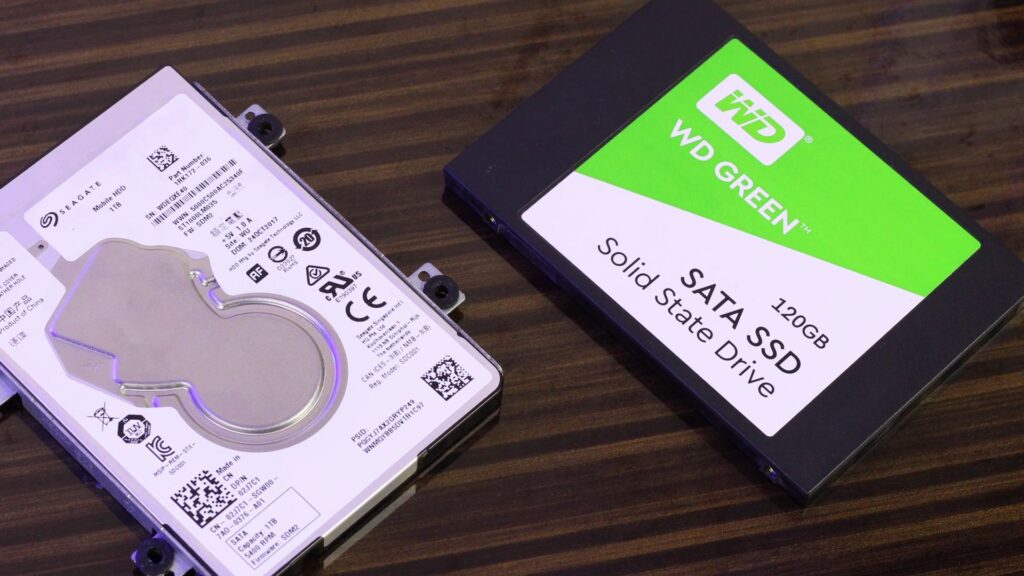
RAM overload from open tabs and apps forces the system to use slower storage as virtual memory. A full hard drive or fragmented files also hampers performance, while viruses quietly hog resources.
Fix 1: Close Unnecessary Programs
Open apps and browser tabs consume RAM, slowing everything else. On Windows, press Ctrl + Shift + Esc to launch Task Manager, then end high-CPU or memory tasks under Processes.
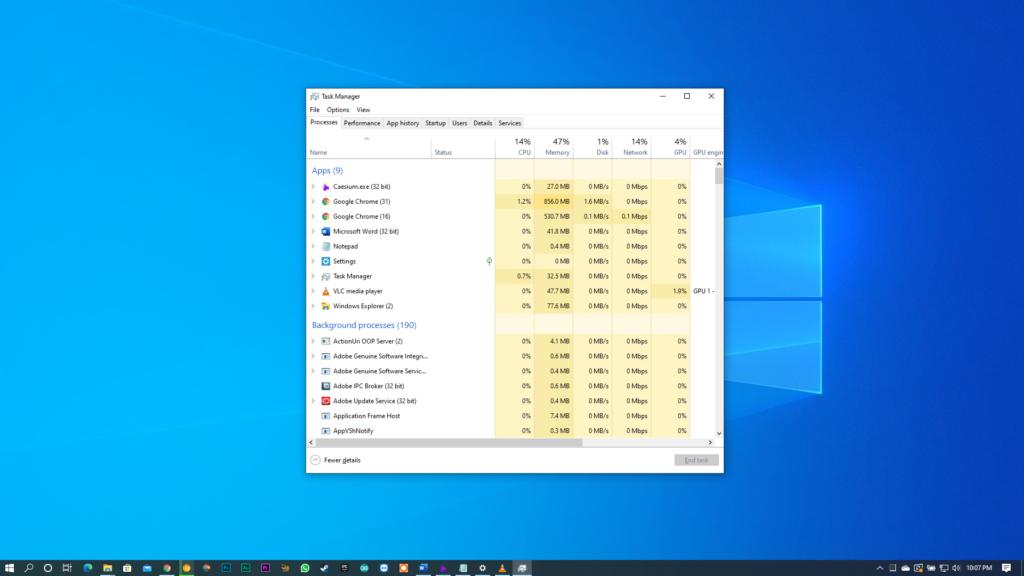
For Mac, use Command + Option + Esc in Activity Monitor to quit resource-heavy items; aim to close 10-20 tabs daily for instant relief.
Fix 2: Disable Startup Programs
Programs launching at boot eat resources before you even start working. In Task Manager’s Startup tab (Windows), right-click unnecessary apps like chat tools or cloud syncs and select Disable.
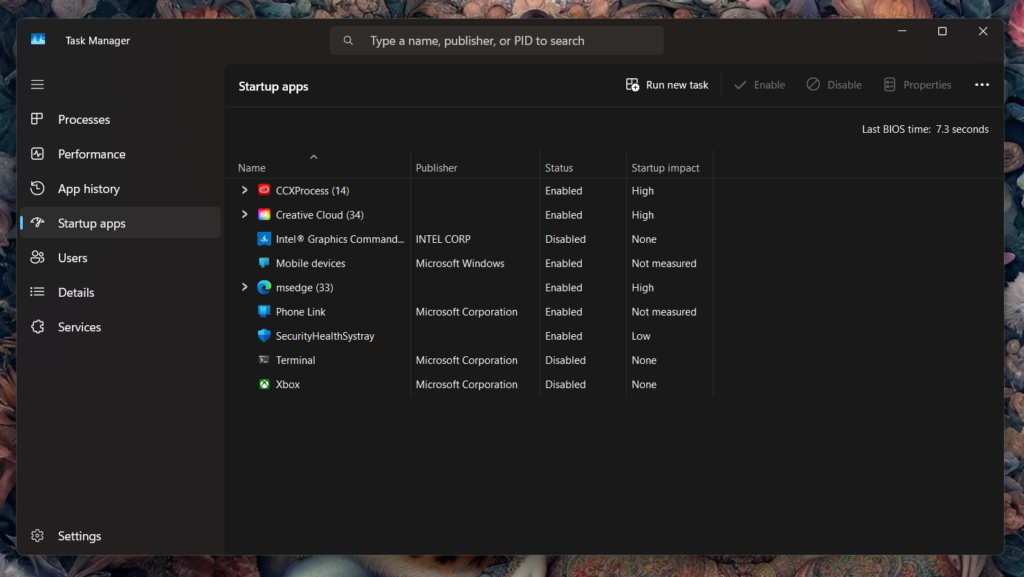
On Mac, go to System Settings > General > Login Items and remove extras; this cuts boot time by 30-50%.
Fix 3: Clear Junk and Temp Files
Temporary files, caches, and downloads bloat your drive, reducing speed.
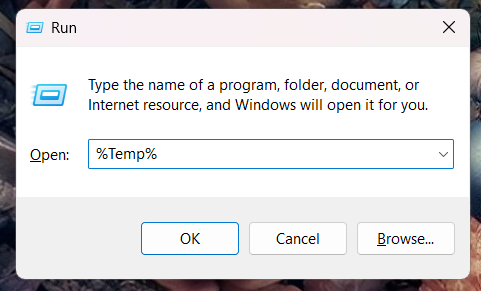
Run Disk Cleanup on Windows: Search “Disk Cleanup,” select your drive, and check Temporary files, Thumbnails, and Recycle Bin.
Use CCleaner (free version) for deeper scans or Storage Sense in Settings to automate; free up 10-20GB for noticeable gains.
Fix 4: Scan for Malware
Viruses and adware run hidden processes, spiking CPU usage.
Use built-in Windows Defender: Go to Settings > Privacy & Security > Windows Security > Virus & Threat Protection, then Quick Scan.
For thorough checks, download free Malwarebytes, run a full scan, and quarantine threats; restart after.
Fix 5: Update OS and Drivers
Outdated software lacks optimizations and causes compatibility issues. On Windows, Settings > Windows Update > Check for updates; enable automatic downloads.
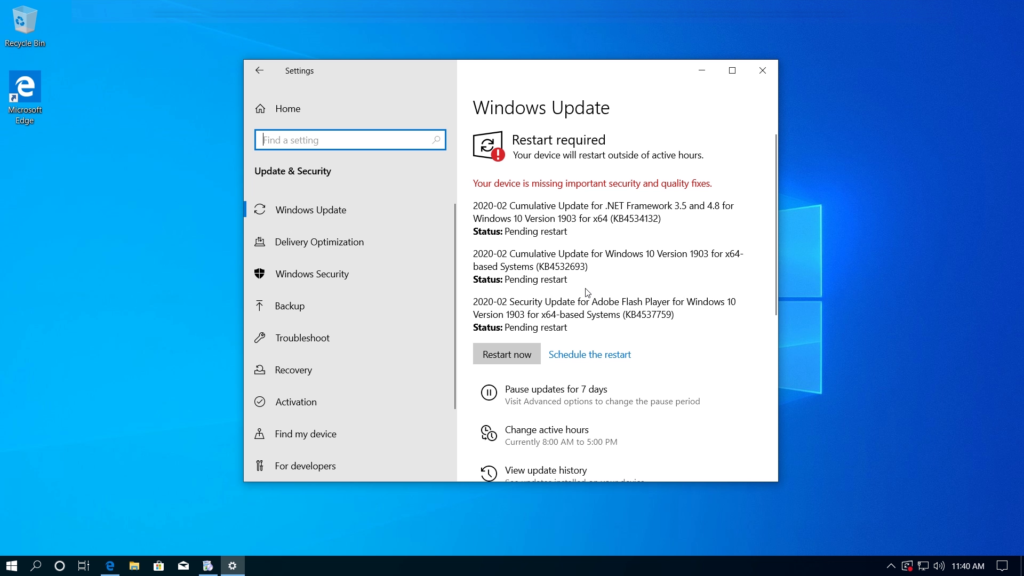
Update drivers via Device Manager (right-click devices like graphics card > Update driver) or tools like Driver Booster; Mac users check System Settings > Software Update.
Fix 6: Upgrade to SSD and More RAM
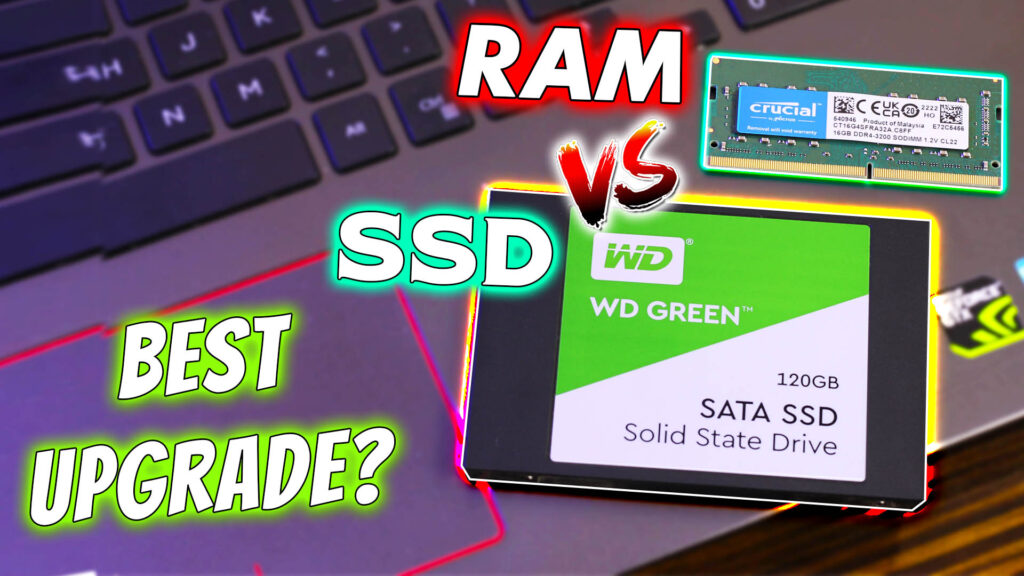
HDDs are slow compared to SSDs, which boot 5-10x faster. Check if your laptop supports RAM/SSD upgrades via Crucial’s scanner tool; 8GB to 16GB RAM handles multitasking, while a 500GB SSD costs under $50.
Clone your drive with Macrium Reflect (free) before swapping; desktops are easier, but many laptops have accessible panels.
Also Read: RAM or SSD Upgrade – Which Boosts Max Laptop Performance
Fix 7: Restart and Maintain Regularly
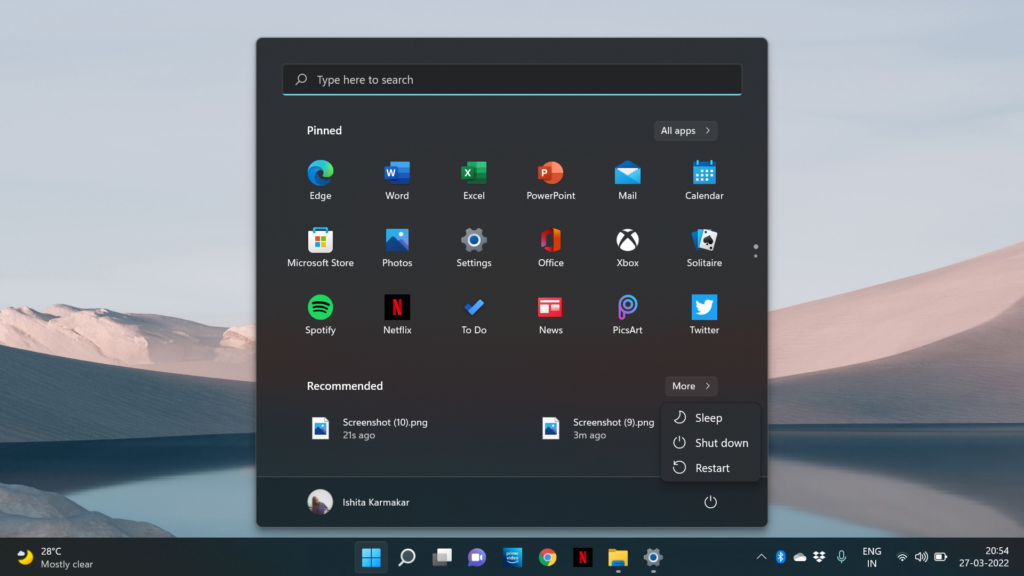
Simple restarts clear RAM and stop stuck processes. Restart weekly, keep 20% drive space free, defragment HDDs monthly (Search “Defragment”), and dust vents for cooling.
Combine with browser extensions like uBlock Origin to block ads, reducing load times by 20-30%.
Extra Tips for Long-Term Speed
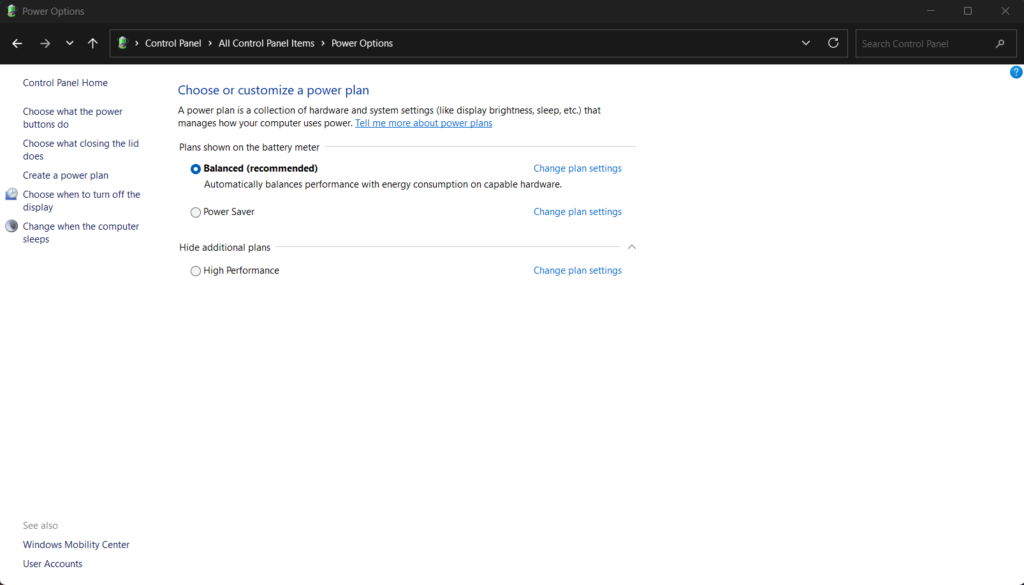
Adjust power settings to High Performance in Windows Control Panel > Power Options.
Uninstall bloatware via Settings > Apps > Sort by size. For gamers, close overlays like Discord or Steam in-game; these fixes work on Windows 10/11 and older models.
| Fix | Difficulty | Impact | Time Needed |
| Close Programs | Easy | High | 2 mins |
| Disable Startup | Easy | High | 5 mins |
| Clear Junk | Easy | Medium | 10 mins |
| Malware Scan | Easy | High | 15 mins |
| Updates | Easy | Medium | 20 mins |
| Hardware Upgrade | Medium | Very High | 1 hour |
| Restart Routine | Easy | Medium | 1 min weekly |
Results and Prevention
Apply 3-4 fixes first for 50-70% speed boost; full set revives old laptops.
Prevent slowdowns by monthly maintenance and avoiding 100+ tabs 🤣.
FAQ
Q1. Why is my laptop suddenly slow?
A: It can be due to background apps, low RAM, full storage, overheating, or malware.
Q2. Will adding RAM fix a slow laptop?
A: Yes, if your laptop has low RAM (like 4GB), upgrading RAM can improve performance significantly.
Q3. How to speed up laptop without SSD?
A: You can disable startup apps, clean storage, uninstall unnecessary software, and update drivers.
Q4. What are the best free tools to fix a slow PC?
A: Tools like Windows Disk Cleanup, Task Manager, and Malwarebytes can help improve performance.