
Solid-state drives are supposed to make computers feel fast. Windows boots quickly, applications open almost instantly, and copying files is much faster than using a traditional hard drive.
But have you ever noticed that your SSD seems to become slower as it fills up?

A large file transfer that once started at hundreds or thousands of megabytes per second might suddenly slow down. Installing a game may take longer than expected, and your PC might occasionally feel less responsive when the system drive has almost no free space left.
So, what’s happening?
An SSD doesn’t simply become slower because it has more files to search through. The real reasons involve NAND flash memory, write caching, garbage collection and the amount of free space available to the drive’s controller.
Let’s understand why this happens and what you can do about it.
1. SSDs Need Free Space to Manage Data Efficiently
Unlike a traditional hard drive, an SSD stores data in NAND flash memory. NAND memory has an important limitation: data is written in pages, but erasing data usually happens at the larger block level. This means an SSD cannot always overwrite existing data as simply as you might expect.
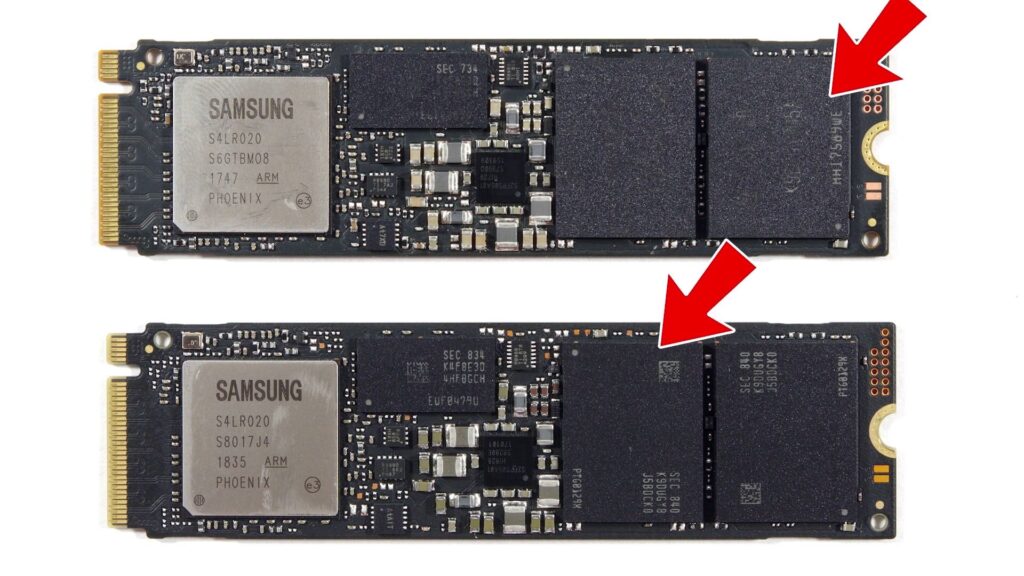
When a drive has plenty of free blocks, its controller can write new data efficiently. However, as the SSD fills up, the controller may need to move existing valid data, erase blocks and reorganize storage before it can complete new writes.

These extra operations can increase write latency and reduce sustained write performance.
Think of it like a workbench. When the table is empty, you can organize everything quickly. When every inch is covered with tools and parts, even a simple job becomes more difficult.
An SSD also needs some breathing room to manage its storage efficiently.
2. The SLC Cache Can Run Out
One of the biggest reasons SSD write speeds drop is the SLC cache. Many consumer SSDs use TLC or QLC NAND memory. To improve write performance, these drives can temporarily operate a portion of their NAND in a faster, single-bit-per-cell mode called pseudo-SLC caching.
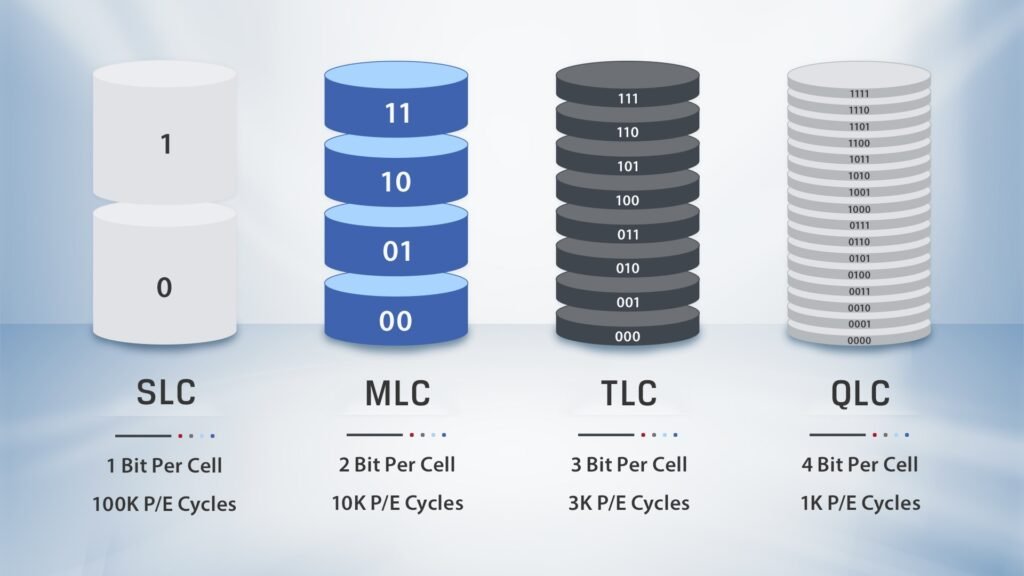
When you begin copying a large file, the SSD may initially write data into this faster cache. That is why a benchmark might show impressive write speeds at the beginning of a test but the cache is not unlimited.
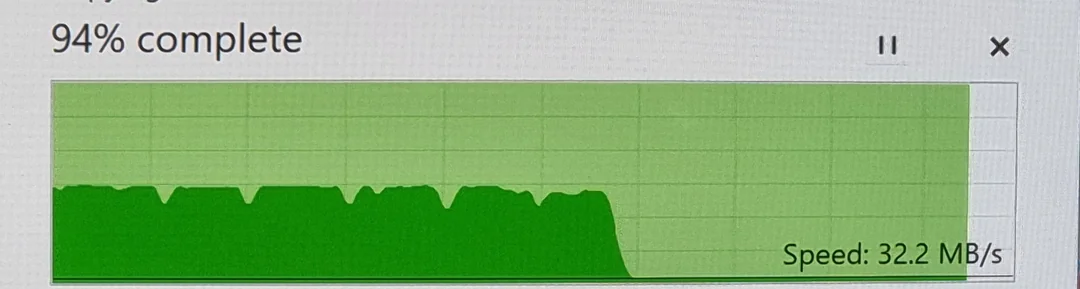
Once the cache fills up, the drive may have to write directly to its slower native NAND mode while also managing background storage operations. Write speeds can drop significantly. The available dynamic cache can also become smaller when the drive has less free space, although the exact behaviour depends on the SSD model, firmware and workload.
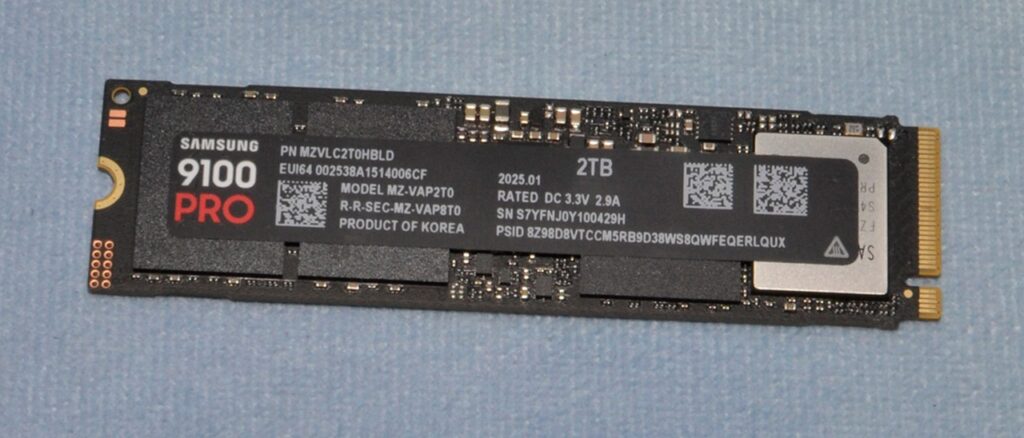
Important: This primarily affects sustained write performance. It does not mean every SSD’s read speed will collapse as soon as it becomes nearly full.
3. Garbage Collection Becomes More Difficult
Garbage collection is another important part of SSD operation. When you delete a file, the operating system marks its storage space as available. However, the SSD may still need to reorganize NAND blocks before it can reuse them efficiently.
The drive’s controller handles this process automatically. It may copy valid data out of a block, erase that block and prepare it for future writes.
When plenty of spare space is available, the controller has more flexibility to perform this work in the background.
When the drive is nearly full, it has fewer convenient options. It may need to do more internal work while handling incoming writes, causing inconsistent performance. You can read more about Garbage Collection and Trim command from here.
This is one reason a nearly full SSD can become noticeably slower during large downloads, installations and file transfers.
4. What Is TRIM, and Why Does It Matter?
TRIM helps the operating system tell a compatible SSD which data blocks are no longer needed. For example, when you delete a large game, Windows can notify a TRIM-compatible SSD that the corresponding storage areas no longer contain useful data. The SSD can then prepare those areas for reuse more efficiently.
Without effective TRIM support, the controller may have to do additional work to determine which data can be discarded.
Most modern operating systems and consumer SSDs support TRIM, and it is normally managed automatically when the drive and storage configuration support it.
You generally do not need to run a special third-party SSD optimizer.
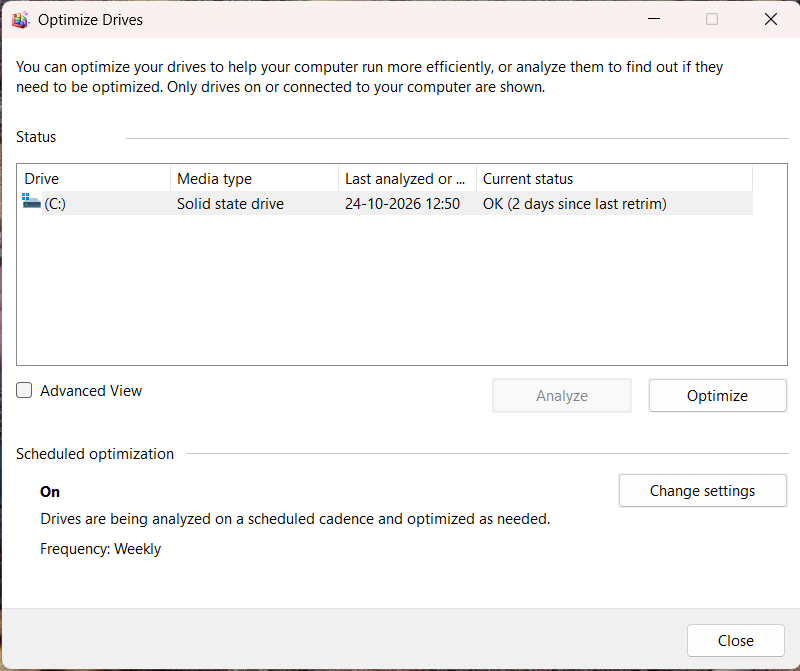
How to check SSD optimization in Windows
- Open the Start menu.
- Search for Defragment and Optimize Drives.
- Open the utility.
- Select your SSD.
- Check the media type and the last optimization time.
- If needed, use the Optimize option and let Windows perform the appropriate operation.
Windows handles SSD optimization differently from traditional hard-drive defragmentation. Do not force conventional manual defragmentation on an SSD as a routine speed fix.
5. Does a Full SSD Always Become Slow?
No. The amount of slowdown depends on the drive and what you are doing.
A nearly full SSD might still read files and launch applications quickly. The slowdown can be more noticeable during sustained writes, large installations or workloads that repeatedly create and delete data.
Other factors also matter:
- Whether the SSD uses TLC or QLC NAND
- The size and behaviour of its SLC cache
- The SSD controller and firmware
- The amount of reserved over-provisioned space
- Drive temperature and thermal throttling
- The type of workload
- The health and age of the drive
Some SSDs maintain performance very well until they are almost full. Others show a much more noticeable drop in sustained write speed.
That is why there is no single percentage at which every SSD suddenly becomes slow.
6. How Much Free Space Should You Leave?
A practical rule of thumb is to keep around 10–20% of your SSD free, particularly if you regularly install games, edit videos or copy large files.
This is not a universal technical requirement. Some drives and workloads can operate comfortably with less free space, while heavy write workloads may benefit from more room.
For example:
- On a 500GB SSD, keeping approximately 50–100GB free is a useful target.
- On a 1TB SSD, approximately 100–200GB free provides more breathing room.
- On a 2TB SSD, approximately 200–400GB free can be helpful for demanding workloads.
These are practical planning examples, not guarantees of a particular speed improvement.
If your SSD is almost full, start by removing unnecessary downloads, old installers, temporary files and games you no longer play.
You can also move large media files to another drive.
Do not delete Windows system files or unfamiliar folders simply to free up space.
7. How to Fix a Slow SSD
If your SSD has become noticeably slower, follow these steps.
Step 1: Free up storage space
Start by deleting or moving unnecessary files. This is particularly useful if your system drive has only a few gigabytes remaining.
Step 2: Check the SSD temperature
Some NVMe drives reduce performance when they become too hot.
Use a reliable monitoring utility to check the drive’s temperature under load. If it is overheating, improve airflow or inspect the SSD’s heatsink installation.
Step 3: Check SSD health
Use the manufacturer’s utility or a trusted SMART monitoring application to check the drive’s health, temperature and reported errors.
If the drive reports critical warnings, repeated errors or a failing health status, back up important files immediately.
Step 4: Check for firmware updates
Visit the SSD manufacturer’s official support page or utility to check for applicable firmware updates. Follow the manufacturer’s instructions and back up important data first.
Step 5: Check whether the write cache is exhausted
If a large transfer starts very quickly and then slows down, the drive may have exhausted its SLC cache. That behaviour can be normal.
Allow the SSD time to recover after heavy writes and avoid judging its performance from a single short benchmark.
Step 6: Avoid unnecessary SSD optimization tools
Be cautious of applications that promise to dramatically increase SSD speed with one click. They cannot bypass NAND limitations, and unnecessary write-intensive operations may be counterproductive.
8. Does a Nearly Full SSD Reduce Its Lifespan?
Not automatically.
A nearly full SSD is not necessarily a dying SSD. However, constrained free space can increase the amount of internal work required for some write workloads.
That can affect write amplification, which describes how much data the SSD internally writes compared with the amount of data the computer asks it to write.
Actual endurance depends on NAND type, controller behaviour, workload, temperature and the drive’s rated endurance.
If your SSD is nearly full, freeing space is sensible—but you do not need to panic or replace the drive simply because it has reached 90% capacity.
Final Verdict
SSDs can become slower as they fill up, but the reason is not that they have more files to search through.
The main issue is that the controller has less flexibility to manage NAND memory, while the SLC cache may become smaller or run out during sustained writes.
TRIM and garbage collection help the SSD prepare storage for reuse, but they cannot eliminate every performance limitation.
For most users, the simplest solution is to keep some free space, monitor temperatures, maintain backups and use the manufacturer’s recommended tools.
Remember: an SSD needs space not only to store your files, but also to manage them efficiently.
Frequently Asked Questions
Why does my SSD slow down when it is almost full?
A nearly full SSD has less available space for efficient write management. Garbage collection may become more demanding, and the dynamic SLC cache may shrink. The effect depends on the drive and workload.
Does an SSD slow down at 80% full?
Not necessarily. There is no universal 80% threshold. Some drives maintain good performance at high capacity, while others show reduced write performance earlier.
Will deleting files make my SSD faster?
It can help if the drive is nearly full, especially for sustained writes. The improvement depends on the SSD, its cache and the workload.
Should I defragment my SSD to improve speed?
No. Routine conventional defragmentation is generally unnecessary for SSDs. Use Windows’ built-in Optimize Drives tool, which handles SSD optimization appropriately.
Is 10% free space enough for an SSD?
It can be sufficient for many everyday workloads, but keeping around 10–20% free is a useful practical target. Heavy video editing or large file transfers may benefit from more space.
Does a full SSD affect gaming FPS?
Usually, SSD capacity alone does not directly determine average FPS. However, extremely low free space can cause installation problems, affect updates and contribute to inconsistent system responsiveness. Game loading and asset streaming may also be affected in some circumstances.