
Laptop overheating is a common issue that throttles performance, causes crashes, and shortens hardware life. This 1200-word guide covers causes, quick fixes, and long-term solutions tailored for gamers and content creators in hot climates like West Bengal.
Cooling stands with built-in fans like this dramatically improve airflow under laptops during intensive tasks.
Also Read: Play Road Rash in Browser – No Download, Free & Working!
Common Causes of Overheating
Dust buildup blocks vents and fans, forcing components to run hotter. High CPU/GPU loads from gaming, video editing, or multiple Chrome tabs generate excessive heat that poor cooling can’t handle.
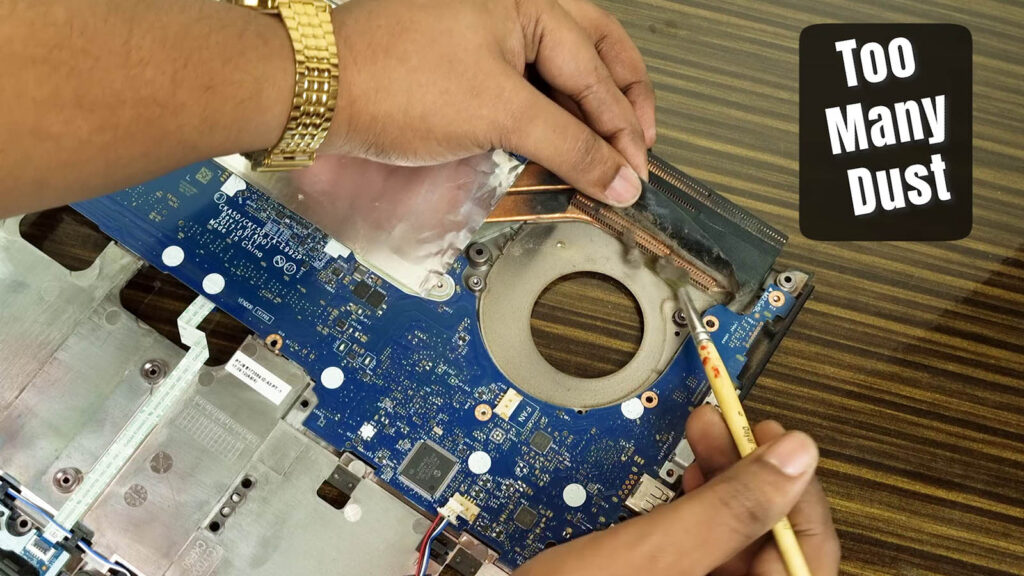
Thermal paste between CPU/GPU and heatsinks dries out after 1-2 years, reducing heat transfer efficiency. Soft surfaces like beds trap heat by blocking intake vents.
Background processes, malware, or outdated drivers can cause fans to spin constantly without providing adequate cooling. India’s summer heat ((35\text{–}45^\circ\text{C})) exacerbates these issues, especially for those using laptops outdoors.
Immediate Cooling Fixes (No Tools Needed)
Power cycle immediately: Shut down, unplug, and let it cool 30 minutes. Place on a hard surface away from sunlight.
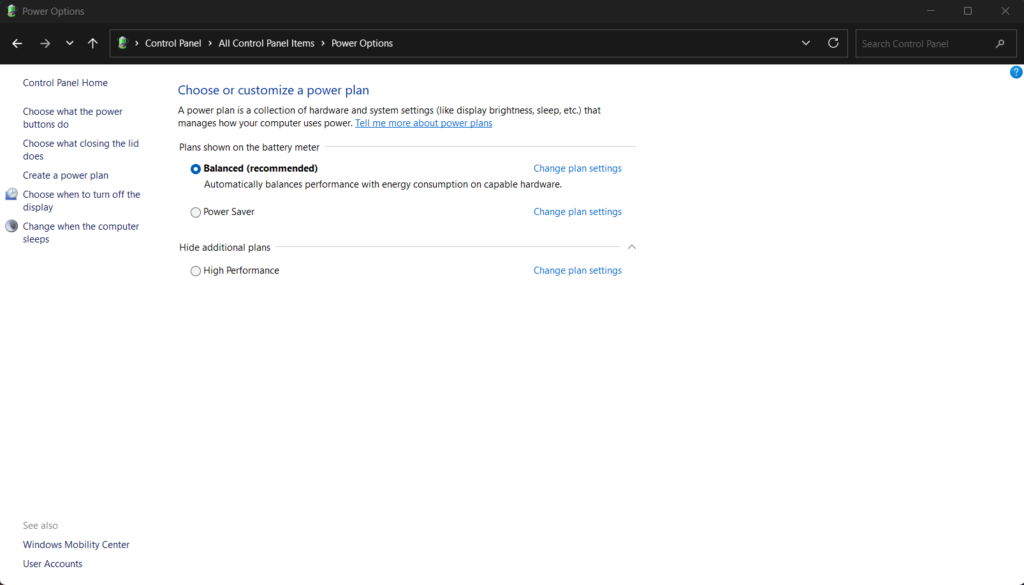
Check Task Manager: Press Ctrl+Shift+Esc, end unnecessary processes eating 50%+ CPU. Switch power plan to “Balanced” instead of “High Performance”.
Elevate the laptop: Stack books under the front edge (1-2 inches) to create airflow gap. Avoid laps or cushions completely.
Disable Turbo Boost temporarily: Right-click Start > Device Manager > Processors > Properties > uncheck “Limit maximum processor state” to 99%. This drops temps 10-15°C instantly.
Deep Cleaning Guide (Basic Tools)
Cleaning laptop fan
You’ll need: Compressed air can (₹200), soft brush, screwdriver set.
- External cleaning: Power off, flip upside down, spray compressed air into all vents (short bursts, can upright). Hold fan blades still to avoid spinning damage.
- Open the bottom panel: Remove 8-12 screws, lift panel carefully. Most gaming laptops have easy-access service hatches.
- Fan and heatsink cleaning: Spray air through fan center toward heatsink fins. Brush away stubborn dust. Never touch components with fingers.
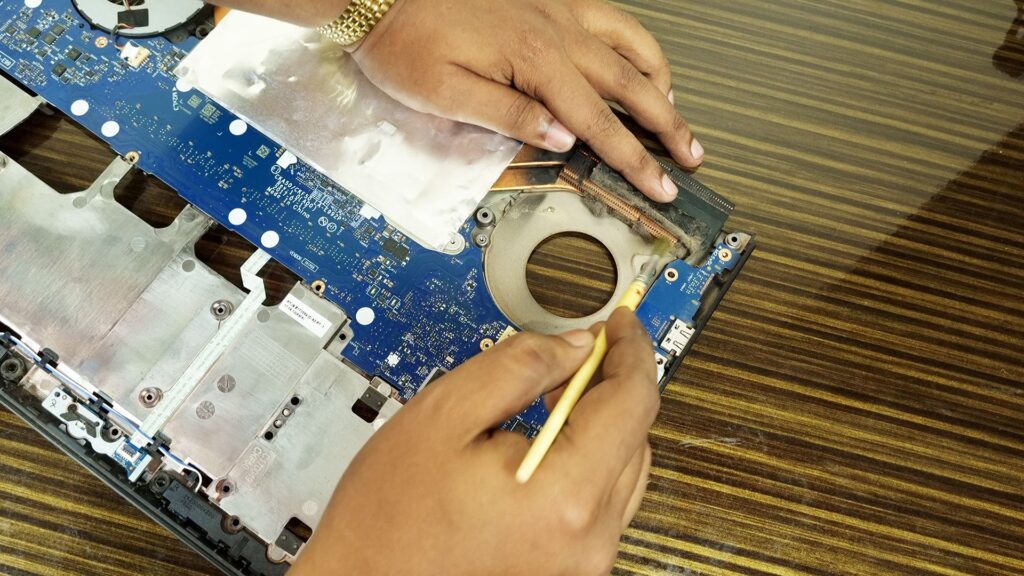
Regular internal cleaning prevents 80% of overheating cases by restoring proper airflow.
This maintenance drops temps 20-30°C and quiets fan noise dramatically.
Software Optimizations
Update everything: BIOS, GPU drivers (NVIDIA/AMD), Windows updates fix thermal bugs. Use manufacturer’s tool (Armoury Crate for ASUS, Alienware Command Center).
Undervolt CPU: ThrottleStop or Intel XTU reduces voltage 50-100mV, cutting heat 10°C without performance loss. Gaming laptops benefit most.
Close resource hogs: Disable startup apps (Task Manager > Startup), limit browser tabs, use Edge over Chrome (less RAM/CPU).
Fan control software: SpeedFan, HWMonitor, or NoteBook FanControl let you ramp fans earlier. Set custom curves for gaming sessions.
Hardware Upgrade Solutions
Cooling Pads (₹1500-3000)
Multi-fan pads drop temps 15-25°C. Top picks for India:
- Kootek 5-Fan (₹2200): Adjustable height, quiet 120mm turbo fan.
- Chilltech Cooling Pad (₹1650): Iron mesh, silent dual fans for content creation.
- LLG 18-Fan (₹2500): Budget gaming option with RGB.
Align fans with laptop vents for maximum effect.
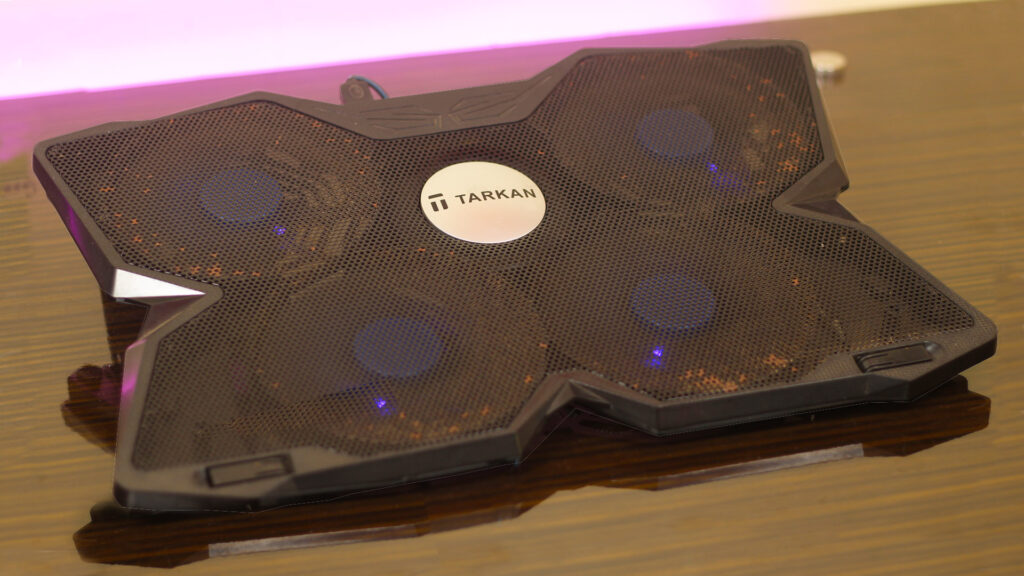
Try this cooling pad:

Thermal Paste Replacement
Liquid metal (Thermal Grizzly Conductonaut) drops temps 20°C but risky for beginners. Safe choice: Arctic MX-6 or Noctua NT-H2 (₹800).
Steps:
- Remove heatsink (6-8 screws).
- Clean old paste with isopropyl alcohol.
- Apply pea-sized dot to CPU/GPU.
- Reassemble, test temps.
Expect 15-25°C improvement. Do this annually for heavy gaming rigs.

DIY thermal paste replacement transforms overheating laptops into cool performers.
Prevention for Long-Term Reliability
Surface matters: Always use desk/table. Add rubber feet (₹100) for 2mm elevation if original feet worn.
Monitor temperatures: HWMonitor/Core Temp shows real-time CPU/GPU temps. Safe limits: 80°C gaming, 90°C max. Throttling starts at 95°C.
Declutter storage: Full SSD/HDD makes system work harder. Keep 20% free space minimum.
Battery optimization: Charge to 80% max, remove during heavy use (if possible). Reduces internal heat buildup.
Ambient temperature: AC/room at 24°C ideal. Siliguri summers demand extra cooling pad investment.
Gaming-Specific Fixes
Lower settings strategically: Cap FPS at 60/144Hz matching monitor. Use V-Sync, disable ray tracing if temps exceed 85°C.
ASUS ROG/TUF: Enable “Turbo” only for short bursts, default to “Silent” mode. Self-cleaning tech helps but manual cleaning doubles effectiveness.
MSI/HP Omen: Cooling pad with 15+ fans matches their vent patterns perfectly.
DirectStorage games: NVMe SSD (from your previous blog) reduces CPU load, indirectly lowering temps.
When to Seek Professional Help
- Persistent 95°C+ idle: Failing fan or dried paste needs service center.
- Grinding fan noises: Bearing failure, ₹2000-4000 repair.
- Crash during light use: Hardware fault, get motherboard diagnostic.
Local shops charge ₹500-1500 for full clean + repaste. Avoid unauthorized repairs voiding warranty.
Cost vs Benefit Summary
| Fix | Cost (₹) | Temp Drop (°C) | Difficulty |
| Cleaning | 200 | 20-30 | Easy |
| Cooling Pad | 1500-3000 | 15-25 | Easy |
| Repaste | 800 | 15-25 | Medium |
| Undervolt | Free | 10-15 | Medium |
| Feet + Elevation | 100 | 5-10 | Easy |
ROI king: Cleaning + cooling pad combo (₹1700 total) gives 35-50°C improvement instantly.
Final Recommendations for Content Creators
For your gaming and content creation workflow NVMe SSD + cooling pad is a minimum requirement. Clean regularly due to dust. Invest ₹2000 now prevents ₹20,000 motherboard replacement later.
After fix test with Prime95 + FurMark stress test. Target gaming temps should be under 80°C for peak performance and longevity.
FAQ
Q1. Why does a laptop overheat?
A: Overheating happens due to dust buildup, poor airflow, heavy usage, or thermal paste issues.
Q2. Does overheating damage a laptop?
A: Yes, it can reduce performance and damage internal components over time.
Q3. How to reduce laptop temperature?
A: Clean the fan, use a cooling pad, replace thermal paste, and avoid blocking air vents.
Q4. What are the best cooling tips for laptops?
A: Keep the laptop on a flat surface, clean it regularly, and avoid heavy usage for long periods.