
Buying a monitor often starts with one question: “How many hertz is it?”
A 144Hz monitor sounds better than a 75Hz model, while a 240Hz display appears even more impressive. Manufacturers and online stores prominently advertise refresh rates because they are easy to understand and attractive to gamers.
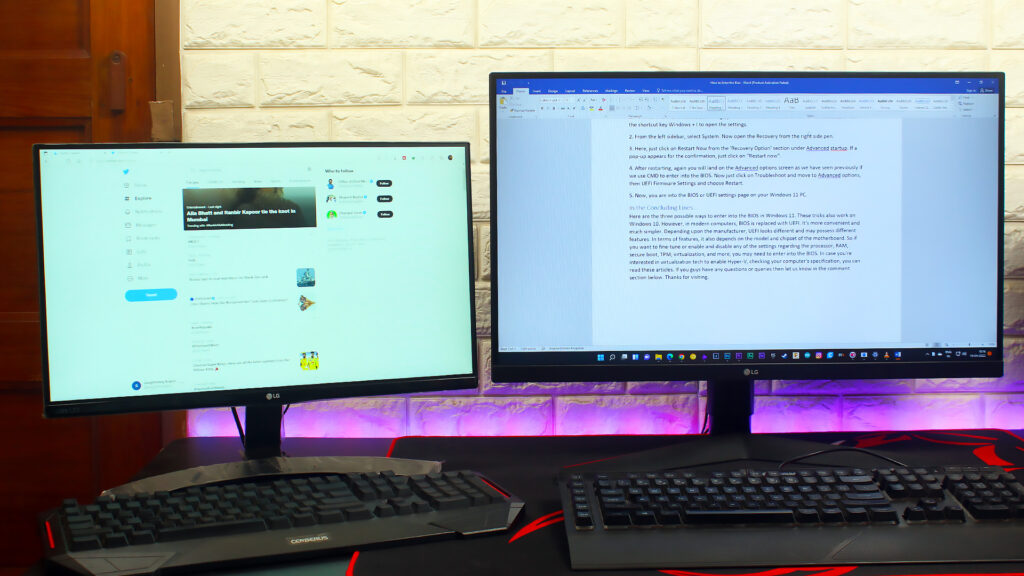
However, refresh rate is only one part of the complete monitor experience. A monitor with a very high refresh rate can still disappoint if it has poor image quality, slow pixel response, weak contrast, bad HDR, limited connectivity, or an uncomfortable stand.
Before buying your next display, look beyond the number printed beside “Hz.”
What Does Refresh Rate Actually Mean?
Refresh rate refers to how many times a monitor updates the image every second. It is measured in hertz, or Hz. A 60Hz monitor refreshes the image 60 times per second, while a 144Hz monitor can refresh it 144 times per second.
A higher refresh rate generally makes movement look smoother. Scrolling through websites feels more fluid, the mouse cursor appears cleaner, and fast camera movements in games are easier to follow.
But there is an important condition: your computer must be capable of producing enough frames to take advantage of that refresh rate.
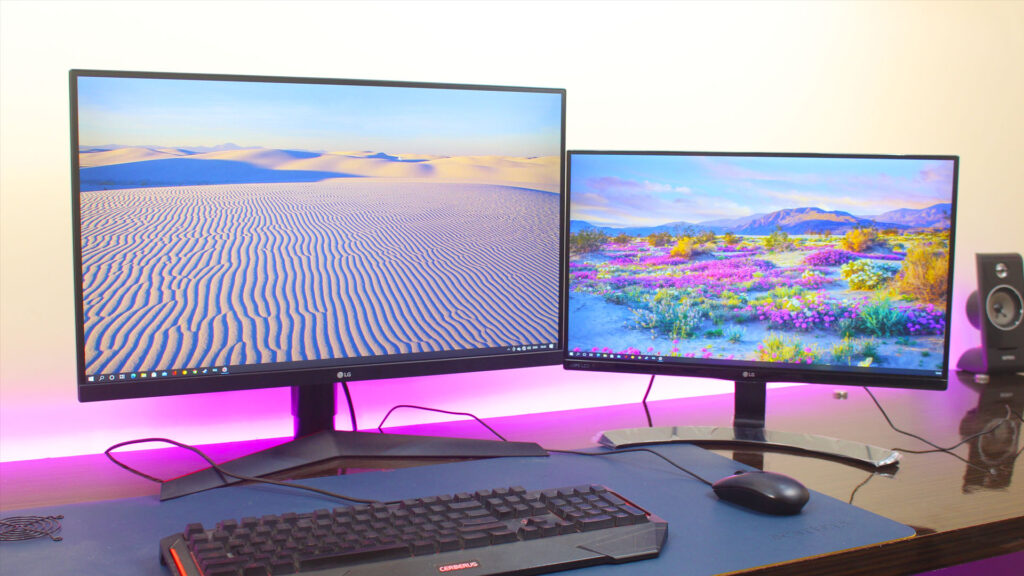
For example, if your graphics card produces only 55 frames per second in a demanding game, a 240Hz monitor cannot magically turn that experience into 240 FPS gaming. You may still benefit from a smoother desktop and lower display latency, but the full advantage of the monitor will not be used.
This is why buying the highest refresh-rate monitor available is not always the smartest upgrade.
Resolution Matters Just as Much
Refresh rate controls motion smoothness, while resolution affects image sharpness and the amount of detail you can see.
A 24-inch 1080p monitor is still a sensible choice for budget gaming. A 27-inch 1440p monitor usually offers a sharper and more spacious experience, making it popular among gamers and productivity users. A 4K monitor provides even greater detail, but it also demands more from your graphics card.
Consider these common combinations:
- 24-inch, 1080p: Good for affordable gaming and everyday use.
- 27-inch, 1440p: A strong balance between sharpness, screen space, and performance.
- 32-inch, 4K: Excellent for productivity, media, and high-end gaming.
- 27-inch, 1080p: Can look less sharp because the pixels are spread over a larger area.
A 144Hz 1080p display may be a better choice for competitive gaming, but a 75Hz or 100Hz 1440p monitor could be more enjoyable for someone who values sharp text, detailed visuals, and productivity.
The right resolution depends on your screen size, viewing distance, GPU performance, and budget.
Panel Type Changes the Experience
The panel inside a monitor influences contrast, colour, viewing angles, and motion performance. The three common panel types are IPS, VA, and OLED.
IPS panels are popular because they typically offer wide viewing angles, good colour reproduction, and balanced performance. They are suitable for gaming, office work, photo editing, and content creation. If you want one monitor for multiple uses, IPS is often a safe starting point.
VA panels usually provide better contrast than IPS displays. Dark scenes can look deeper, which is useful for movies and story-based games. However, some VA monitors can show dark-level smearing, especially during fast movement.
OLED panels offer excellent contrast because each pixel can turn off independently. This produces true blacks and an impressive HDR experience. OLED monitors can also deliver extremely fast pixel response times. However, they are usually more expensive, and buyers should understand the possibility of image retention or burn-in with certain usage patterns.
A 240Hz monitor with poor contrast may look less enjoyable than a 144Hz display with a better panel. The number alone does not tell you how good the picture will look.
Response Time Is Not the Same as Refresh Rate
Refresh rate tells you how often the monitor can display a new frame. Response time tells you how quickly a pixel can change from one colour to another.
These two specifications work together. A monitor may support 165Hz, but if its pixels change slowly, moving objects can leave behind trails or appear blurry. This effect is commonly called ghosting.
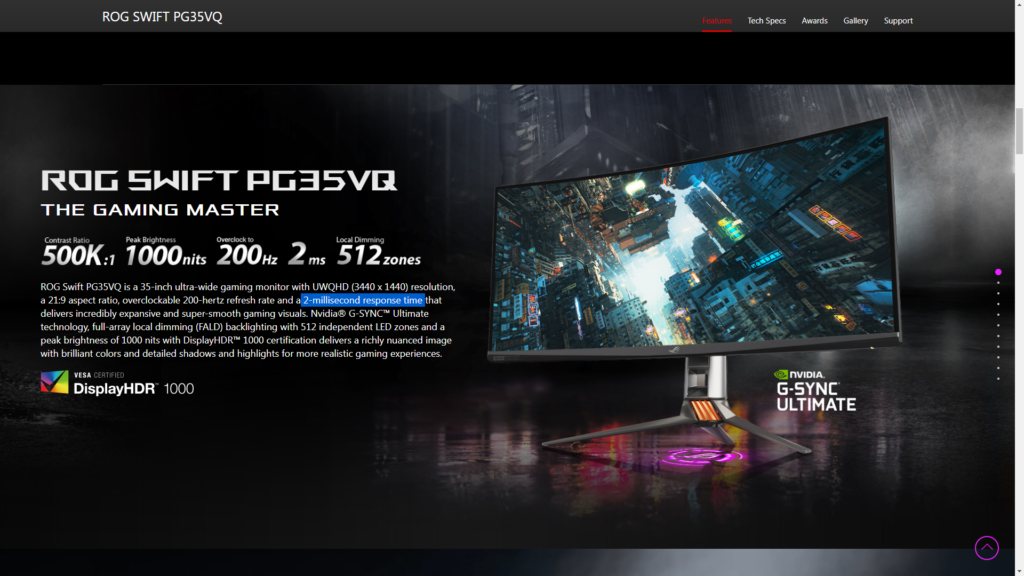
Manufacturers often advertise extremely low response times, such as “1ms,” but the real-world result may depend on the selected overdrive mode, brightness level, refresh rate, and testing method. Some aggressive overdrive settings can create inverse ghosting, where bright or dark outlines appear around moving objects.
For gaming, look for independent reviews that test motion performance instead of trusting the advertised response time alone. A well-tuned 144Hz or 165Hz monitor can provide a cleaner experience than a poorly tuned 240Hz model.
Adaptive Sync Makes Gaming Smoother
Your GPU does not always produce a perfectly consistent frame rate. One moment a game may run at 120 FPS, and another moment it may drop to 85 FPS.
Variable refresh rate technologies, such as AMD FreeSync, NVIDIA G-SYNC Compatible displays, and VESA Adaptive-Sync, allow the monitor to adjust its refresh timing according to the GPU’s frame output. This can reduce screen tearing and make uneven frame rates feel smoother.
When buying a gaming monitor, check:
- The supported VRR technology.
- The actual VRR range, such as 48–144Hz or 60–180Hz.
- Whether low framerate compensation is supported.
- Compatibility with your graphics card and connection type.
A high refresh rate without reliable adaptive sync may not deliver the smooth experience you expect, particularly in demanding games.
Colour, HDR, and Brightness Matter
If you edit photos, create videos, watch films, or play visually rich games, colour performance deserves serious attention.
Check whether the monitor covers common colour spaces such as sRGB or DCI-P3. Factory calibration also matters, especially if you need reasonably accurate colours for creative work.
HDR is another specification that is frequently used as a marketing feature. A monitor may technically accept an HDR signal but still provide a weak HDR image if it lacks sufficient brightness, contrast, and local dimming.
For a convincing HDR experience, look beyond the word “HDR” on the product page. Check the brightness rating, contrast behaviour, local dimming capability, and independent reviews.
Sometimes, a monitor with accurate SDR colours and good contrast is a better purchase than a cheap display that advertises HDR but cannot produce a meaningful improvement.
Don’t Ignore Comfort and Connectivity
You may spend several hours looking at your monitor, so ergonomics are not optional luxuries.
A useful stand should ideally offer height, tilt, and swivel adjustment. VESA mount support is also helpful if you plan to use a monitor arm. Poor ergonomics can lead to neck and shoulder discomfort, even when the display itself looks excellent.
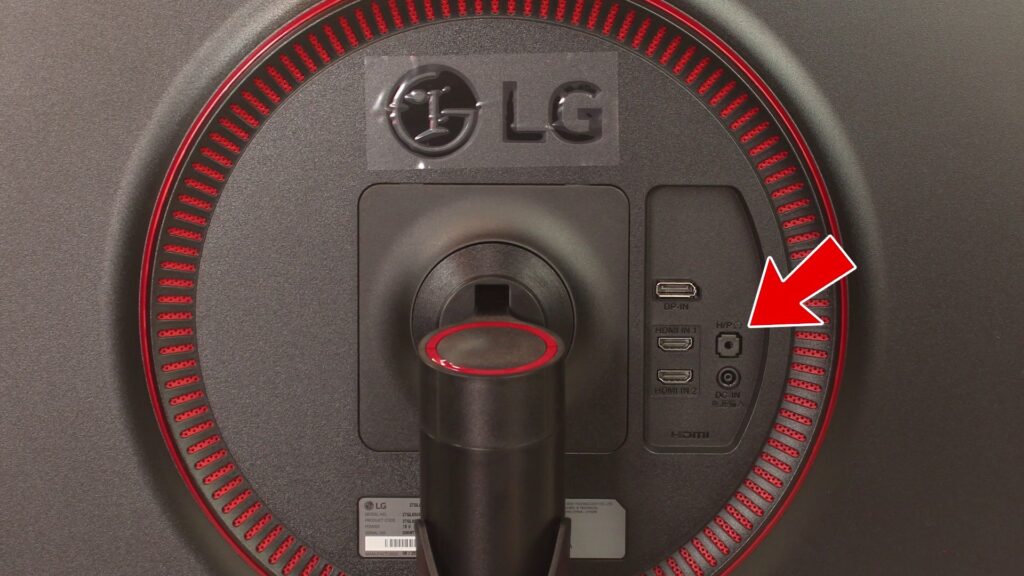
Also check the available ports. Depending on your setup, you may need:
- DisplayPort for high refresh rate PC gaming.
- HDMI for consoles and laptops.
- USB-C with video input and power delivery.
- A USB hub for keyboard, mouse, or storage.
- A headphone output or built-in speakers.
Make sure the port supports the resolution and refresh rate you intend to use. A monitor may advertise 180Hz, but the maximum refresh rate could depend on DisplayPort rather than HDMI.
Choose According to Your Usage
The best monitor specification depends on what you do every day.
For office work and browsing, resolution, text clarity, viewing comfort, and ergonomics may matter more than extreme refresh rate. A 75Hz or 100Hz monitor can already make scrolling and window movement feel smoother than 60Hz.
For casual gaming, a 1080p or 1440p monitor with 100Hz to 165Hz, good response times, and adaptive sync is often a balanced choice.
For competitive esports, high refresh rate and low latency become more important. A 240Hz or faster display can make sense if your system consistently produces high frame rates and you are sensitive to motion clarity.
For story-driven games and movies, resolution, contrast, HDR, colour quality, and panel technology may improve the experience more than moving from 144Hz to 240Hz.
Final Thoughts
Refresh rate is important, but it should not be the only reason you buy a monitor. Think of it as one item in a larger checklist that includes resolution, panel type, response time, adaptive sync, colour accuracy, HDR, brightness, connectivity, and ergonomics.
Before purchasing, ask yourself three questions:
- What games or applications will I use most?
- Can my PC consistently produce enough frames?
- Which matters more to me: motion smoothness, image quality, sharpness, or colour accuracy?
A balanced 144Hz monitor with a good panel, useful VRR range, clean motion handling, and an adjustable stand can be a better investment than a flashy 240Hz model with poor image quality.
So, the next time you see a monitor advertised mainly by its refresh rate, pause for a moment. More hertz can be useful, but the best monitor is the one that fits your complete setup—not the one with the biggest number.