
Your PC powers on, the fans start spinning, and the RGB lights look normal—but the monitor remains black. The first reaction is usually panic: “Has my graphics card died?” Fortunately, a no-display problem is often caused by something simple, such as the wrong monitor input, a loose cable, incorrectly installed RAM, or a GPU that needs reseating.
Before buying a new graphics card or taking the computer to a repair shop, follow these checks in order. In many cases, you can identify and fix the problem within five minutes.
1. Check the monitor first
It sounds obvious, but always begin with the monitor. Confirm that the monitor’s power light is on and that its power cable is firmly connected. Press the monitor’s power button once and wait a few seconds.
Next, check the selected input source. For example, if your cable is connected through HDMI 1 but the monitor is set to DisplayPort, it may show “No Signal” even though the computer is working perfectly.
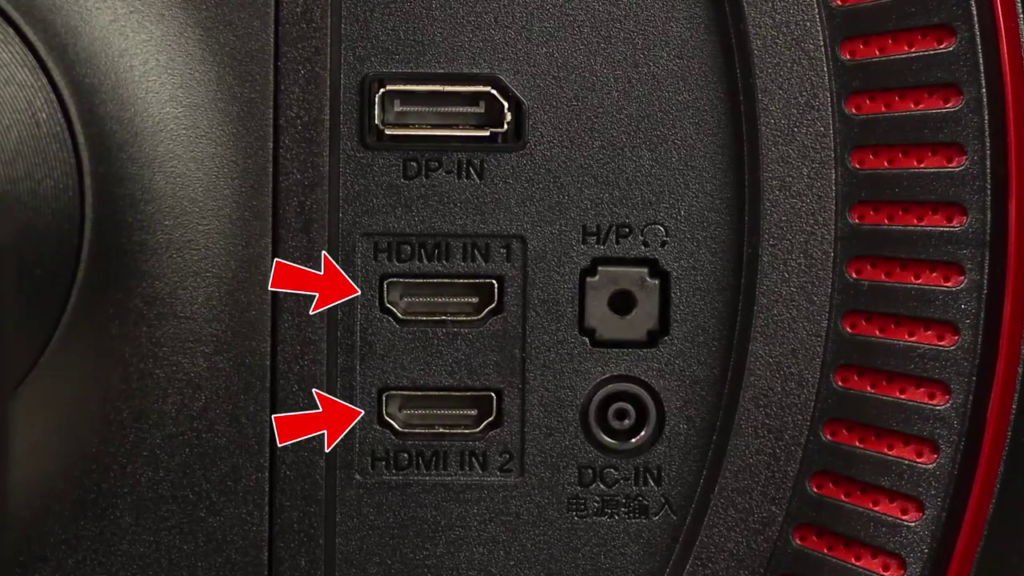
Use the monitor’s buttons to select the correct input:
- HDMI 1 or HDMI 2 for an HDMI cable.
- DisplayPort for a DisplayPort cable.
- DVI or VGA if you are using an older connection.
If possible, connect the monitor to another device, such as a laptop, streaming box, or game console. You can also test your PC with another monitor or television. This quickly tells you whether the problem is with the display or the computer.
2. Reconnect or replace the display cable
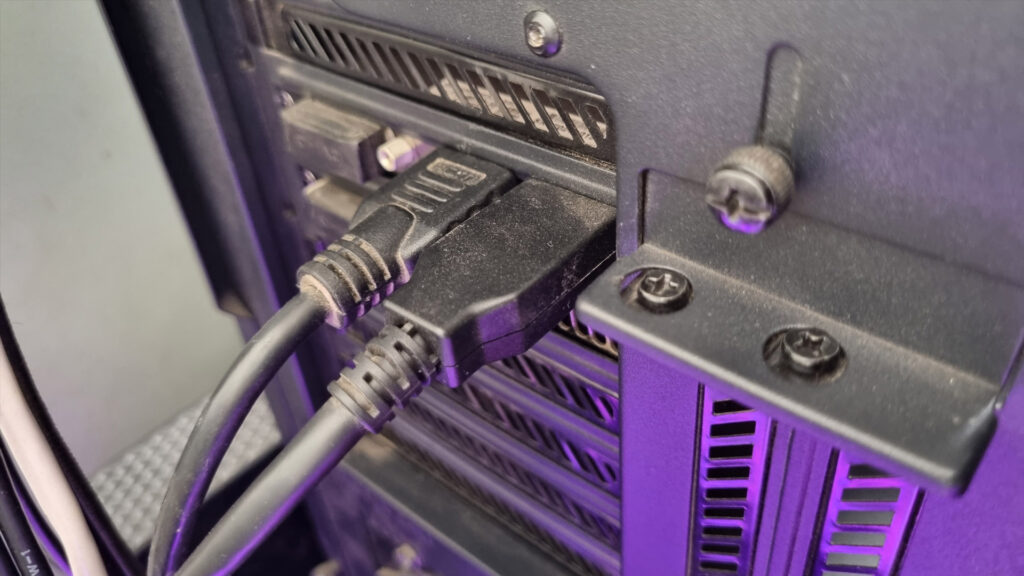
A loose or damaged HDMI or DisplayPort cable is one of the most common reasons for a “No Signal” message. Turn off the monitor, remove the cable from both ends, and reconnect it firmly.
If you are using DisplayPort, make sure the connector is fully inserted. Some DisplayPort cables have a locking mechanism, so press the release button before removing them.
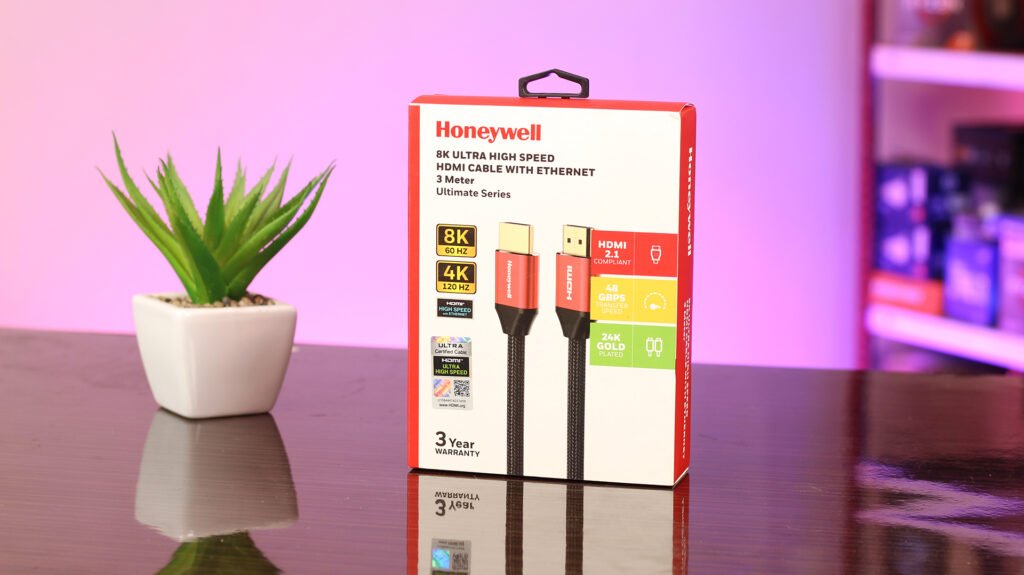
Now try the following:
- Use another HDMI or DisplayPort cable.
- Try a different port on the graphics card.
- Connect the cable to another input on the monitor.
- Avoid using adapters during testing.
- If you are using a desktop graphics card, connect the cable directly to the graphics card.
That last point is particularly important. If your PC has a dedicated GPU, the correct ports are usually located lower down on the back of the case. The motherboard’s HDMI or DisplayPort connection may not work unless your processor includes integrated graphics. ASUS also recommends checking that the signal cable is firmly connected to both the monitor and the computer’s graphics output.[asus]
3. Perform a complete power reset
Sometimes the computer becomes stuck during startup even though the fans and lights remain active. A power reset can clear this temporary state.
Follow these steps:
- Turn off the PC by holding the power button for around five to ten seconds.
- Switch off the power supply if your PSU has a rear switch.
- Remove the PC’s power cable.
- Disconnect unnecessary USB devices, external drives, printers, and controllers.
- Hold the computer’s power button for 15–20 seconds.
- Reconnect the power cable and turn on the PC again.
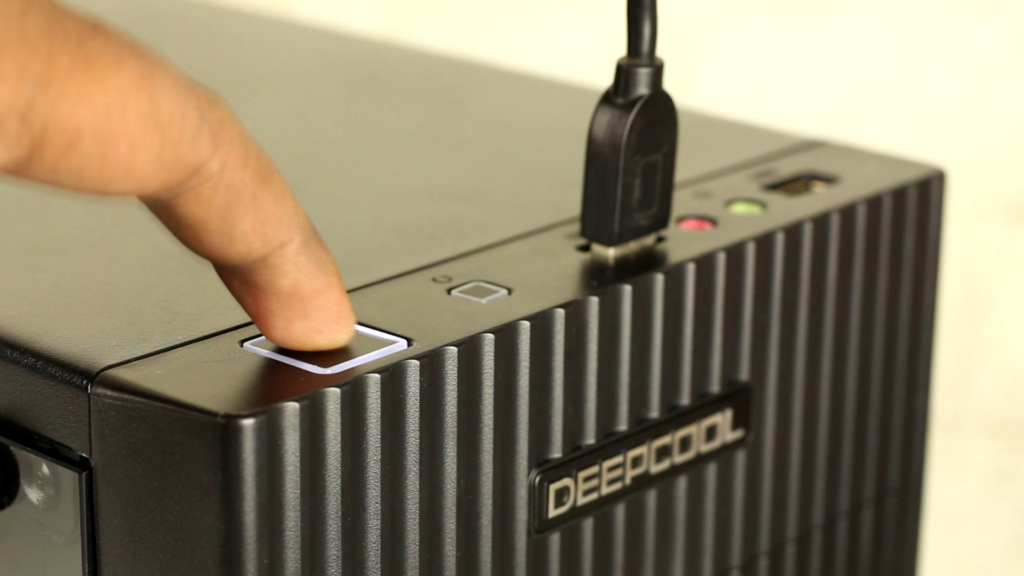
Dell recommends disconnecting external peripherals and holding the power button for 15–20 seconds before reconnecting power.
For this test, keep only the essentials connected: the monitor, keyboard, mouse, and power cable. A faulty USB device can occasionally interfere with the startup process.
4. Reseat the RAM
If the monitor and cable are working, loose or improperly installed RAM is the next thing to check. A computer may turn on and spin its fans without completing the power-on self-test when memory is not detected correctly.
First, shut down the PC, switch off the PSU, unplug the power cable, and touch the metal part of the case to discharge static electricity. Do not work inside the case while the computer is connected to power.
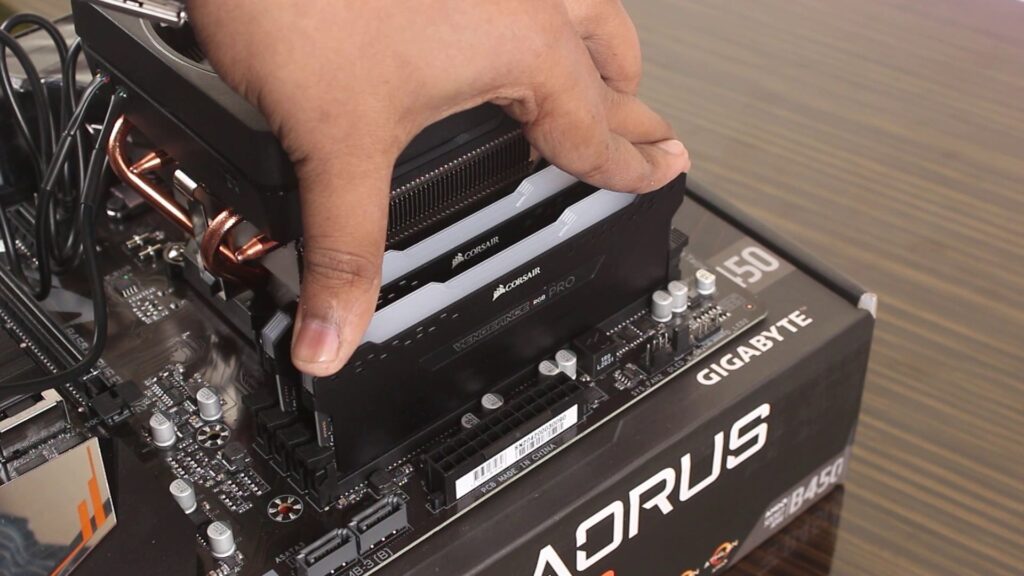
Remove the RAM sticks by opening the clips at the ends of their slots. Then reinstall them carefully. Press down evenly until the clips lock into place. The RAM should sit completely straight, with no visible gap between the module and slot.
If you have two or more RAM sticks, test the system with only one stick installed. Use the recommended slot mentioned in your motherboard manual—often the second slot from the processor. If the PC still shows no display, try the other RAM stick individually.
This test can reveal whether one module or one motherboard slot is causing the problem. Microsoft troubleshooting guidance also suggests trying one memory module at a time and changing slots when a PC powers on without displaying an image.
5. Check the graphics card
A graphics card can become slightly loose after moving the PC, cleaning it, or installing another component. If the GPU is not seated correctly, the fans may spin, but no image will appear.
Turn off the PC, unplug it, and remove the side panel. Check that the graphics card is fully inserted into the main PCIe slot. The slot’s retention clip should be locked. Also check all GPU power connectors, including standard PCIe cables and newer 12VHPWR connectors.
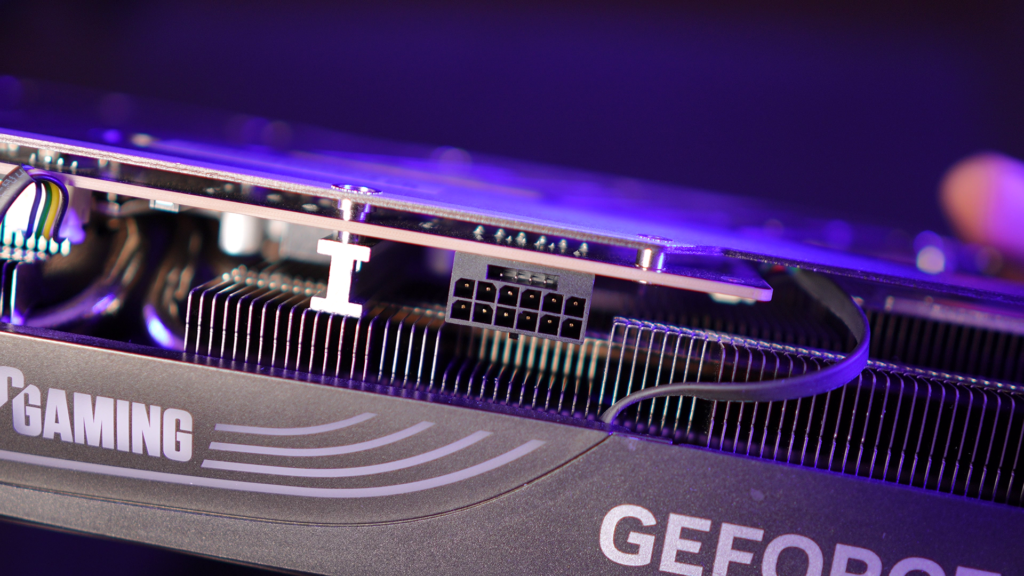
Do not force the connector. It should be inserted completely and should not be bent sharply near the plug. If the card looks loose, remove it carefully and reinstall it until it clicks into position.
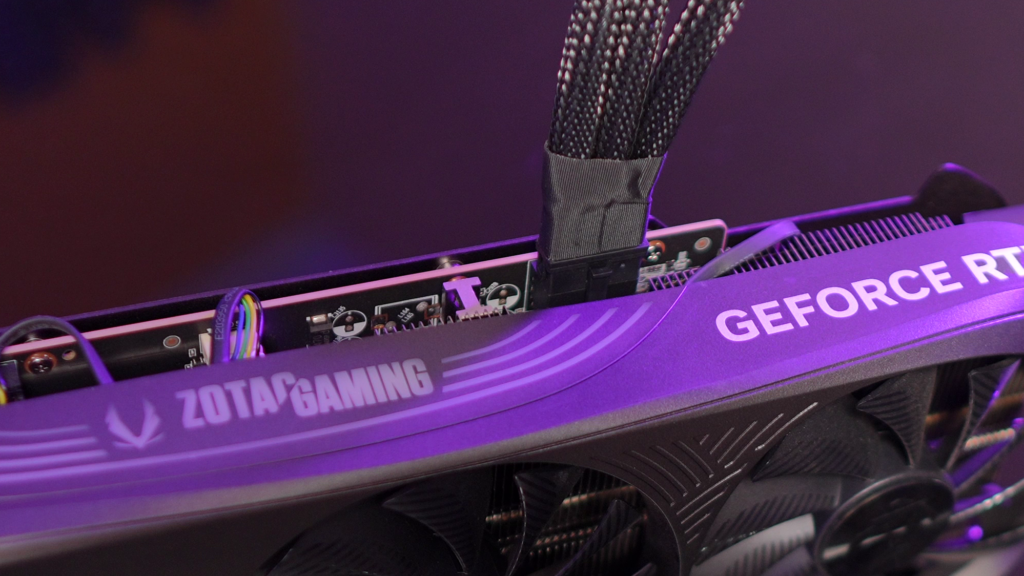
If your processor supports integrated graphics, you can perform another useful test. Remove or temporarily disconnect the dedicated GPU and connect the monitor to the motherboard’s HDMI or DisplayPort output. If the display works this way, the graphics card, its power connection, or its PCIe slot may be the source of the issue.
If the screen is still black
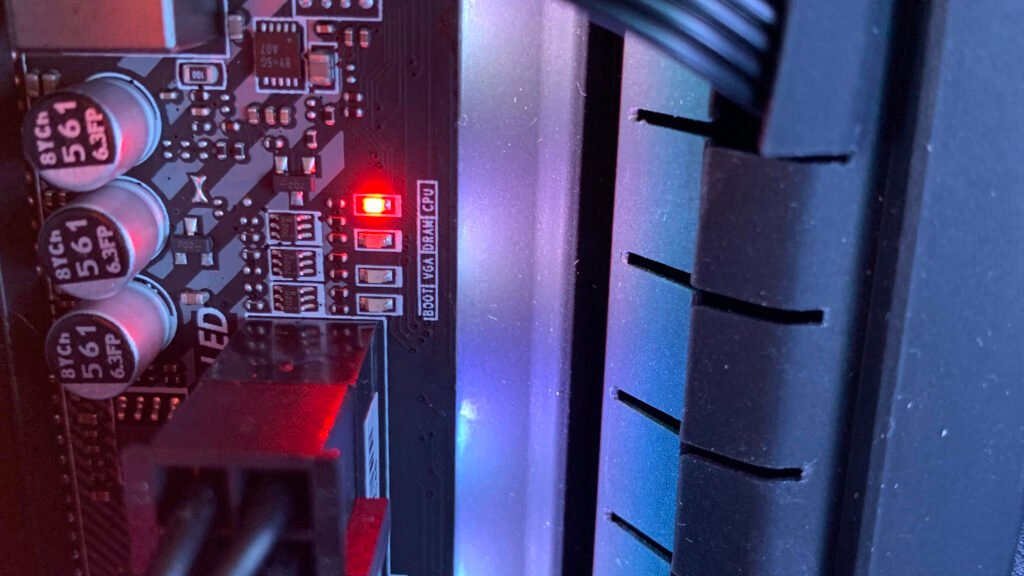
Look at your motherboard’s diagnostic LEDs. Many modern boards include CPU, DRAM, VGA, and BOOT indicators. The light that remains on can point toward the faulty component.
You can also try clearing the CMOS, which resets BIOS settings such as memory overclocking and display priority. Use the clear-CMOS jumper or remove the motherboard battery only after shutting down and unplugging the PC. Check the motherboard manual for the correct method. Also if you’re not using UPS for your PC then please use one for the safety. How UPS can Save ur PC from multiple problems check the artcle below:
Also Read: UPS – How it Could Protect Your Computer from Power Outage?
Avoid immediately updating the BIOS unless you know the motherboard, processor, and update procedure are compatible. An incorrect BIOS update can create additional problems.
Final thoughts
When a PC turns on but no display appears, start with the simplest possibilities: monitor power, input selection, and cable connections. Then move to a power reset, RAM testing, and graphics-card inspection. This step-by-step approach prevents unnecessary purchases and helps you identify whether the issue is with the monitor, cable, memory, GPU, or motherboard.
If the computer produces burning smells, sparks, repeated shutdowns, or unusual clicking sounds, stop troubleshooting and disconnect it from power. In that situation, professional inspection is safer than continuing to test hardware.